You have the option to increase the memory of a virtual server at any time, as long as you have not yet reached the largest level. With OpenVZ servers, the memory is available immediately and without rebooting. With KVM servers, however, there are a few small things to keep in mind.
There are usually 3 reasons why the memory is not yet available to you after an upgrade.
The server must be restarted
If you change the storage capacity of a KVM server, you must stop and restart your server in the web interface. At startup, the change of the virtual hard disk is then carried out. In Linux-based servers, the new space is then assigned to /dev/sda1.
A snapshot is available
If a restart via the web interface did not cause any change, you may have snapshots active. Remove all snapshots and restart the server afterwards. Sometimes you have to contact the support to get them to restart the change process for you for free.
The freed space must be allocated (Windows)
When your hard disk is expanded, the freed disk space is not allocated to a hard disk drive (e.g. C:). You have to do that yourself. We explain how to do this in the article Extending Windows Hard Disk Space.
All this did not help
Feel free to contact us in support. We can then check what did not work. You will get your hard drive space in any case.
Open “Windows Defender Firewall with Advanced Security”, create a new inbound rule of type “Port”, enter protocol and port number and allow the connection. Windows Server blocks incoming connections by default, so every service you want to reach from outside needs such a rule.
Example: you run a Minecraft server on your Windows Server. Other players can only connect once port 25565 is open in the Windows Firewall. On our side nothing blocks the port, see Are all ports open?, the rule in Windows is up to you.
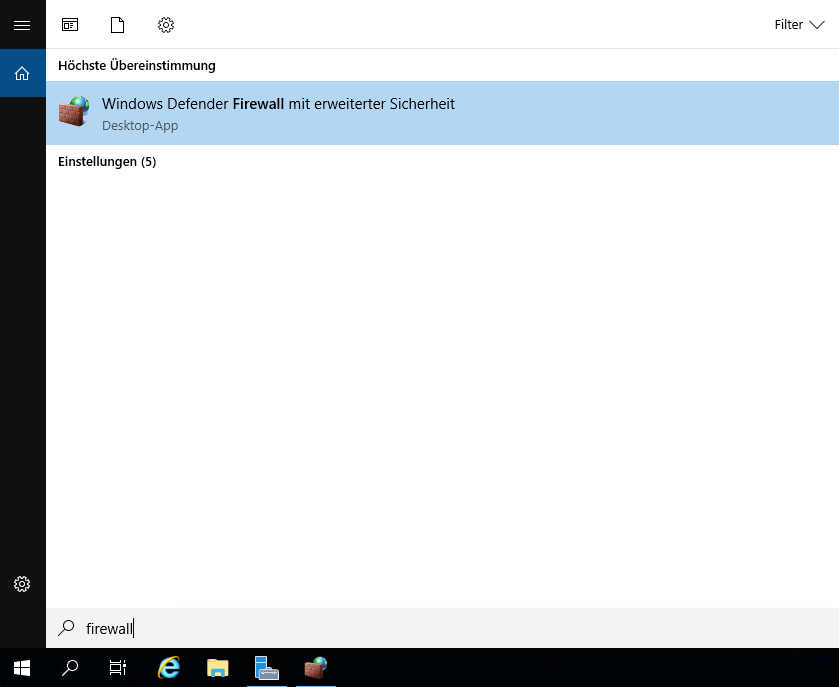
Search for “Firewall” in the Start menu and open “Windows Defender Firewall with Advanced Security”.
Opening Windows Defender Firewall with Advanced Security
Right-click “Inbound Rules” on the left and select “New Rule”.
Choose the rule type “Port” and click “Next”.
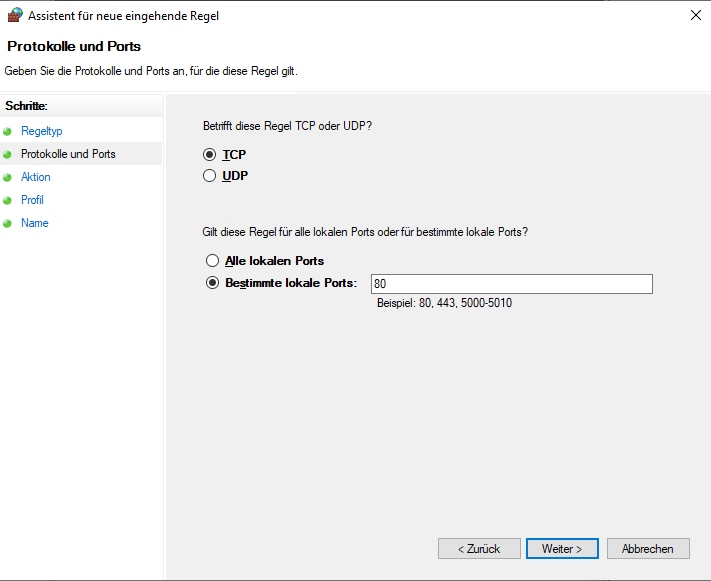
Select “TCP” or “UDP” and enter the port numbers under “Specific local ports”, for example 25565. Several ports are separated by commas, ranges are written as 50000-51000. Click “Next”.
Entering protocol and ports in the new inbound rule wizard
Choose “Allow the connection” and click “Next”.
Leave all profiles checked and click “Next”.
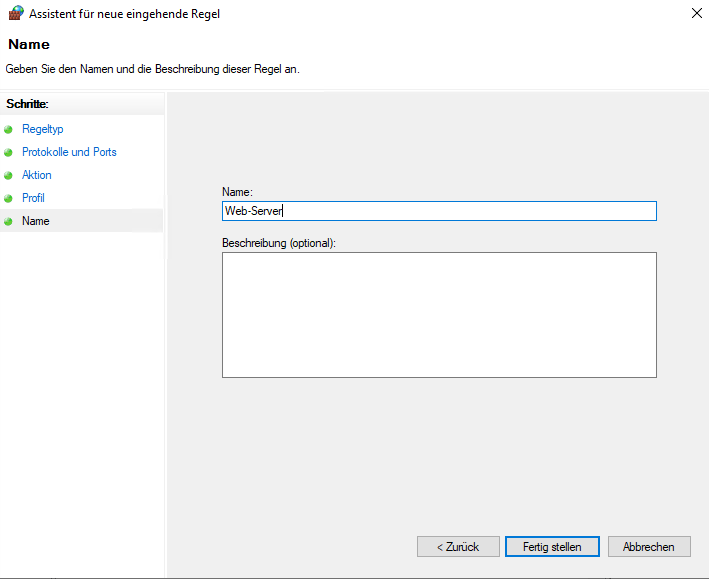
Give the rule a name, ideally the application, for example “Minecraft Server”, and click “Finish”.
Naming the new inbound firewall rule
The rule takes effect immediately, a restart is not needed.
Faster with PowerShell
In a PowerShell window started as Administrator, one line creates the same rule:
For UDP, replace TCP with UDP. If an application needs both, create two rules.
Common pitfalls
Wrong protocol: Many game servers and TeamSpeak need UDP. A TCP rule alone does not help them.
Port open, still no connection: Check whether the service is listening at all: netstat -ano | findstr :25565. No output means the program is not running or uses a different port.
Locked out after a firewall change: If you blocked RDP by mistake, log in via VNC and fix the rule.
It is important to update your server at regular intervals. Every program can have security vulnerabilities, which can allow foreign code to be executed on your own server.
That is why we will show you in this article how to bring your server and installed packages up to date.
First, log into your server via SSH.
Debian
Step 1: Update package lists
apt-get update
Step 2: Update packages
apt-get -y upgrade
If you are asked if you want to overwrite a configuration file, choose “Install the package maintainers version” if you have not consciously made any changes to it.
If you are prompted to choose a disk for the boot process, select (Space) /dev/sda (the top one).
A virtual Windows root server is not equipped with its own sound card. This is because you usually don’t need speakers on the server in the data center. But that doesn’t mean you can’t have sound on your Windows server!
You can set the sound to be played on the server to be forwarded to your local device. This is a setting in the Remote Desktop Connection program from Microsoft.
To be able to listen to sound via Remote Desktop, a few steps are necessary.
Enable sound in Remote Desktop settings
Open the Remote Desktop Connection program on your local computer and enter the IP address of your Windows server. Then click on “Show options” at the bottom.
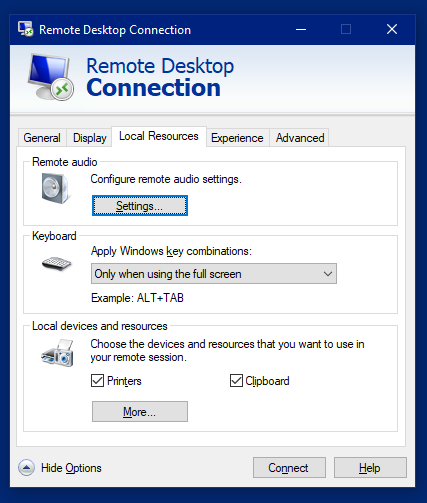
Then navigate to the “Local Resources” tab. Here you can perform various settings, such as the transfer of drives, USB sticks and printers in your network.
Local resources
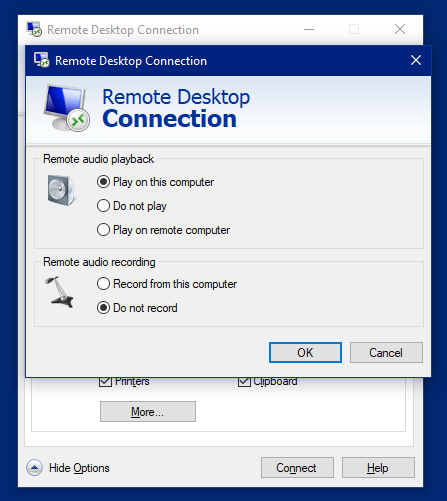
But in this case we are interested in the “Remote Audio” option. Click on the “Settings” button. A new dialog opens in which the options can be set.
Remote audio settings
Select the first entry for “Remote audio playback“. This is “Play on this computer“. Then click OK to save the setting.
Now connect to your Windows server as usual. You may need to make some settings there.
Windows Audio is deactivated
Usually, the Windows Audio service is disabled. This is because Windows could not detect audio output during installation. However, this service can be activated very easily.
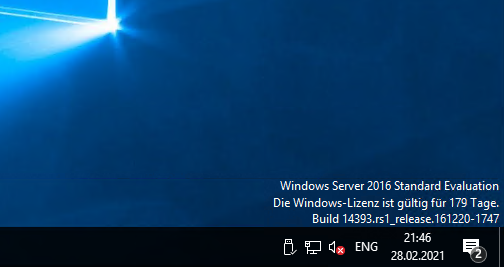
Right-click on the icon with the round red cross and select “Output devices“. A new dialog opens.
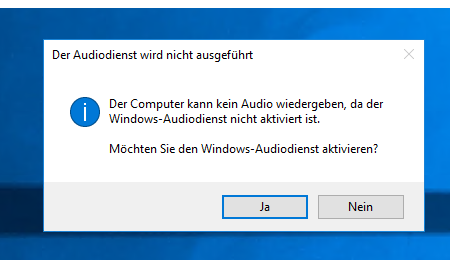
Audio service is not performed.
Confirm this dialog with “Yes” to activate the Windows Audio service.
Your Windows server can now play audio/sound/sound.
Check this, for example, by briefly watching a YouTube video. You should then be able to hear the sound on your headphones.
If this does not work, please contact us in support. We will be happy to help you.
We place a high value on a balanced price-performance ratio. To ensure all customers benefit from fair pricing, we use the fair-use principle for traffic billing. This means there is no exact limit, but excessive use is restricted.
Why Is There a Limit?
If a customer with an inexpensive 4 Euro vServer uses 5TB within 20 days, it results in costs for us that far exceed the monthly server fee paid. Most customers use less than 1TB per month. Therefore, we don’t set a specific traffic limit in advance. However, if all customers used such large amounts of data, we would have to raise prices for everyone.
10 TB Included
From now on, some of our servers include 10 TB of traffic per month! This means you can utilize your full potential without worrying about extra costs. If you need more, we offer simple options to add extra traffic.
Burst Speed and Throttling
Depending on the server you have, we offer burst speed that can be used up to a limit of 10 TB per month with full bandwidth. After that, the bandwidth is reduced to 50 Mbps. In extreme cases, we reserve the right to throttle the speed to 25 Mbps.
Adding More Traffic
If you need more traffic at full speed, you can add extra traffic anytime. You can buy up to 10TB for 9.50 Euro per TB. From 10TB onwards, each additional TB costs 8.50 Euro. Please note that unused extra traffic will expire.
Allowed and Not Allowed Traffic
Not Allowed Traffic
VPN traffic outside your own household
Traffic from Tor nodes
Torrenting of copyrighted material
Proxy traffic like SOCKS-Proxy outside your household
IPTV
24/7 live streams to platforms like Twitch or YouTube
These types of traffic cause constant or unfair traffic peaks and are therefore not allowed.
Allowed Traffic (within Fair Use)
High-traffic websites
Legally permissible download sites
Nextcloud or similar file transfers without public access
Game server content
Private VPN traffic for your own PC
Your own services for traffic optimization (like Reverse Proxy, Content Delivery)
Prices and Quotas
If you need extra traffic quota, you must book it in advance. Unused traffic will expire at the end of the billing period. Here are the prices:
Up to 10TB: 9.50 Euro per TB
From 10TB onwards: 8.50 Euro per TB
So if you want to book 2TB of extra traffic, it costs a one-time fee of 19.00 Euro. The extra traffic is billed monthly, and the billing date is always the same as the order date of the associated service.
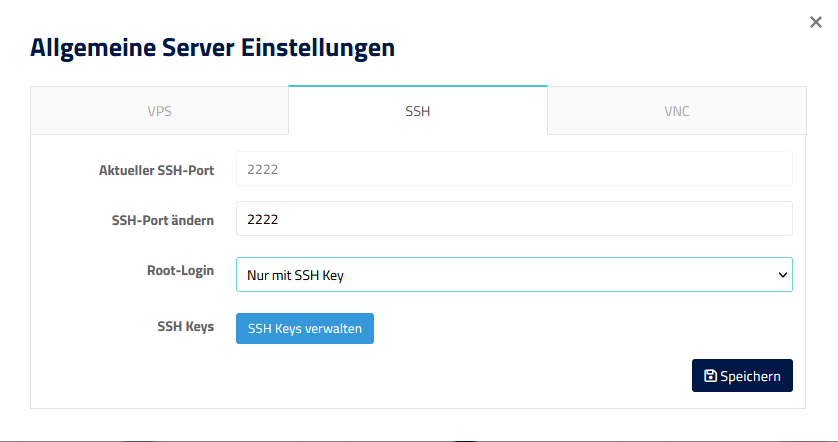
The quickest way is the Cloud Manager: tab “SSH”, set “Root Login” to “SSH Key Only”. This requires the Guest Agent. Manually, you set PasswordAuthentication no in the SSH configuration and restart the SSH service, which works on every Linux server. Important in both cases: first check that logging in with your SSH key works, then turn off the password.
Why it is worth it: every server with an open port 22 gets automated login attempts around the clock. Without password login, these attempts go nowhere, no matter how many there are.
Using the web interface
In the VPS settings of the Cloud Manager you can switch password authentication for the root login on and off. This requires a running Guest Agent. Go to the “SSH” tab and select “SSH Key Only” for “Root Login”.
Cloud Manager, “SSH” tab: set the root login to SSH key only
After saving, your server only accepts the root login with an SSH key. If you work with additional users, use the manual way, which applies to all accounts.
Smart Essential: There is no “SSH” tab here. The web interface only offers the root password reset (also via the Guest Agent). If the Guest Agent is running, you can set the option via the Prepaid-Hoster API. Without the Guest Agent, use the manual way.
Manually via SSH
On Debian and Ubuntu, the SSH service first reads the files in /etc/ssh/sshd_config.d/ and then /etc/ssh/sshd_config. If a setting appears twice, the first value wins. So it is best to create your own file with a low number that is read before all others:
nano /etc/ssh/sshd_config.d/00-ssh-key-only.conf
Content of the file:
PasswordAuthentication no
KbdInteractiveAuthentication no
PermitRootLogin prohibit-password
PasswordAuthentication no turns off the password login.
KbdInteractiveAuthentication no closes the second way a password can be requested. On Debian this is already the default, the line does no harm.
PermitRootLogin prohibit-password allows root only with a key.
Save the file and check the configuration for typos. No output means everything is fine:
sshd -t
Then restart the SSH service:
systemctl restart ssh
Keep your current session open. Test in a new window whether you can log in with your key. If that fails, delete the file in the open session and restart the service again.
How to check that it works
The SSH service shows you the values it actually uses:
Expected are passwordauthentication no, kbdinteractiveauthentication no and permitrootlogin without-password (the internal name SSH uses for prohibit-password).
From your own computer you can force a password login on purpose. The server has to reject it:
ssh -o PubkeyAuthentication=no root@62.68.75.69
The correct answer is Permission denied (publickey). without a password prompt.
Common pitfalls
The password is still requested: Another file in /etc/ssh/sshd_config.d/ sets PasswordAuthentication yes and is read before yours. A typical one is 50-cloud-init.conf on Ubuntu. grep -ri passwordauthentication /etc/ssh/ finds every occurrence.
A change directly in sshd_config has no effect: Same reason. Values from sshd_config.d take precedence because they are read first.
The option in the Cloud Manager is missing or has no effect: The Guest Agent is not running. Install the Guest Agent or use the manual way.
The key is rejected: Check the permissions. ~/.ssh needs 700, ~/.ssh/authorized_keys needs 600 and must belong to the user you log in with.
PuTTY asks for a password: The private key is not loaded. In PuTTY, set the .ppk file under “Connection”, “SSH”, “Auth”, “Credentials”. Details in Create and use an SSH key.
I have locked myself out
No reason to panic. Via VNC in the Cloud Manager you log in directly at the console. That is not an SSH connection, so the root password still works there. Then delete the new file or fix the setting and restart the SSH service.
Forgot the root password? You can reset it yourself: How do I reset my root or admin password? If the server no longer starts cleanly, the rescue system in the Cloud Manager helps.
Our network providers use automated tools to protect your server and other servers. If your server engages in suspicious activities, your IP address will be blocked and the traffic will be stopped. This can happen if your server attacks other servers, sends spam emails, or scans networks. We also regularly check our abuse mailbox for such activities and manually review these cases to ensure that all violations of our terms of service are reported and appropriately handled. Please take the security of your server seriously to avoid violations of our terms of service and possible blocking of your IP address.
Costs
Activation
â¬5.00
Optional data backup
â¬15.00/15 mins, higher on weekends
Your IP address will be blocked if…
You initiate an outgoing (D)DoS attack
Your server attacks other servers (brute force, etc.)
Your server scans other networks (port scan, network scan, etc.)
Your server sends spam emails
A compromised server can manifest itself through various symptoms, depending on the type and extent of the attack. Some possible scenarios include:
Unexplained network activities: If the server has been compromised, this can lead to unusual network activities that are not typically expected. This can include port scans, connections to unusual targets, or data transfers from unknown sources.
Changes to firewall or security settings: An attacker may change the firewall or security settings of the compromised server to facilitate network access or take control of other devices on the network.
Frequent crashes or outages: If the server is infected, this can result in frequent crashes or outages, leading to longer downtime and increased data loss.
Email spam or phishing attempts: A compromised server can also be used to send spam emails or phishing attempts, which can result in the network being blacklisted as spam and damage customer trust.
It is important to take these symptoms seriously and act quickly to prevent further damage. If you suspect a compromised server, you should immediately take the necessary IT security measures to stop the attack and restore the server.
Please take server security seriously. If you leave such vulnerabilities as mentioned above (even unknowingly) open, you are legally violating our terms of service.
What to do next
If your server has been blocked for the reason “Anti-Hack”, you must contact us immediately. Additional actions are required to unblock the IP address.
1: Activation fee: Load â¬5.00 onto your prepaid hosting account in order to have the IP address manually unblocked. Please understand that this process incurs a fee as it requires manual intervention. We do not profit from this process, but rather need to cover the associated costs.
2: Reinstallation & Backups: Reinstallation of the server is mandatory to prevent further attacks and protect the network. We will handle the reinstallation. A technician can only perform a backup of your data in absolute emergencies. This intervention costs â¬15.00 per started 15 minutes. Please note that according to our terms of service, Section 7, Paragraph 4, you are responsible for creating backups and do not have a right to a backup.
3: Confirmation: Please give us the green light that you have received the message and will take appropriate measures to prevent such a problem from occurring again. If the problem recurs, we will unfortunately have to terminate the prepaid contract, as you will have violated our terms of service again in this case.
4: Activation: Afterward, the matter will be closed and we will reconnect your server to the internet!
Why does the activation cost money?
The process of unblocking the IP address and server after compromise requires manual interventions that entail technical effort. Since this process cannot be automated and the unblocking is done manually, we need to cover the associated costs.
The cost of â¬5.00 per process partially covers the manual interventions and technical effort required to unblock the IP address and server. We would like to emphasize that we do not profit from this process, but only need to cover the incurred costs. Therefore, we recommend our customers to take appropriate security measures to prevent misuse of their servers and avoid the costs of unblocking the IP address and server.
With our vServers, you have the possibility to set a PTR/RDNS entry. This is especially needed when operating a mail server. This “Record” (entry) can be easily configured in our web interface.
Setting RDNS
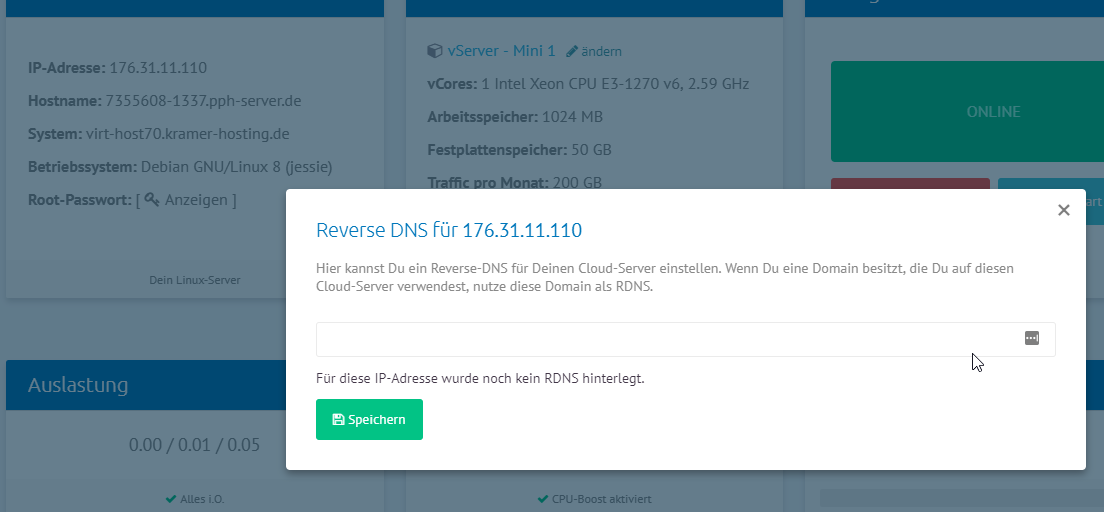
In our vServers, you can find a button called “RDNS” in the Cloud Manager. Click on this button to assign a domain name to the IP address of your server. If no RDNS entry has been set yet, a corresponding message will appear there. If such an entry has been set, it will be displayed there. You can change the record at any time.
Important: Please note that the chosen domain or subdomain used as the RDNS/PTR record must also resolve to the IP address of the server. This is also checked by the system in the administration area before saving.
If you still have any questions, you can always contact us in support! In case of doubt, we will set the correct PTR entry for you.
Setting RDNS
IPv6 support
If you set an RDNS in this dialog, it will also be set for the first IPv6 address (::1). If you need an RDNS for other IPv6 addresses, please feel free to contact us in support.
In this article we will show you how to install different Java versions (1.8, 16, 17, …) on your virtual server quickly and easily.
Java Logo
We provide a script that installs different open source Java versions on your server. You just need to log in as root on the server and start running the automatic installation.
In this article we will show you how to install different Java versions (1.8, 16, 17, …) on your virtual server quickly and easily.
We provide a script that installs different open source Java versions on your server. You just need to log in as root on the server and start running the automatic installation.
We install different versions for you in the /usr/lib folder.
Supported versions
We install different versions for you in the /usr/lib folder.
Supported versions
Currently the following versions are supported:
jdk-13.0.1_linux-x64 -> java version "13.0.1" 2019-10-15
-> /usr/lib/jdk-13.0.1/bin/java
jre-8u241-linux-x64 -> java version "1.8.0_241"
-> /usr/lib/jre1.8.0_241/bin/java
openjdk-16.0.1_linux-x64 -> openjdk version "16.0.1" 2021-04-20
-> /usr/lib/jdk-16.0.1/bin/java
openjdk-17.0.1_linux-x64 -> openjdk version "17.0.1" 2021-10-19
-> /usr/lib/jdk-17.0.1/bin/java
Installation
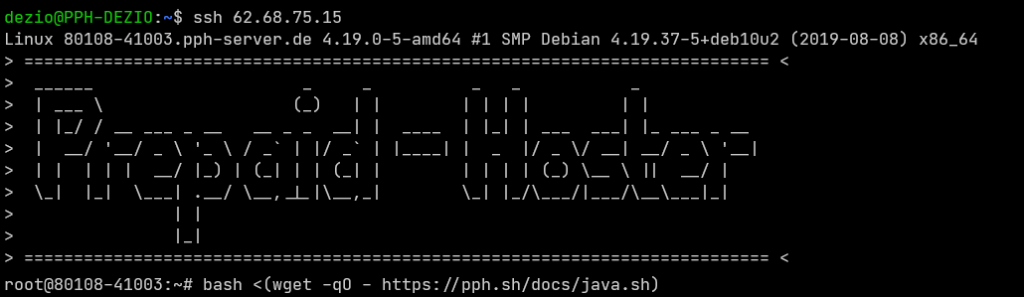
To install these versions on your server, please run the following command:
bash <(wget -qO - https://pph.sh/docs/java.sh)
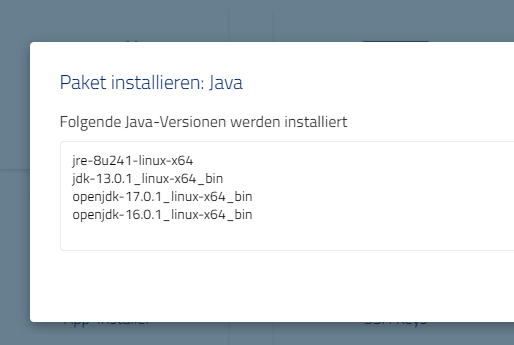
Alternatively, you can use the app installer to install Java.
Cloud Manager: Install Java packages
Change default version
To set the default version (java in the console), run the following command after installation:
select-default-java
Here you select which version to use as the default Java. We create a link from /bin/java to the selected version.
View available versions
To view all versions installed by the script, run the following command after running the Java installer:
You can set up the Game Server Manager to make a complete backup of your game server every day at a specific time. Just follow these easy steps:
Go to the game server of your choice.
Wait until the Game Server Manager is fully loaded.
Click on the “Backups” tab.
Click the “Settings” button in the tab content.
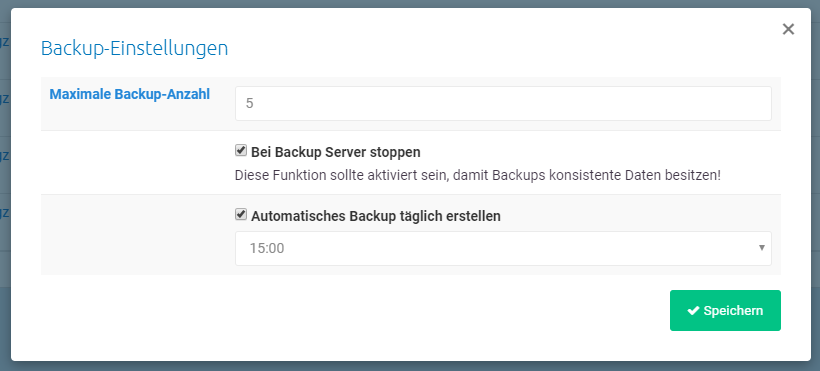
Select “Automatically create daily backup” and save your settings.
Maximum Backup Count
The maximum backup count shows how many backups are kept. Before each new backup, older backups are deleted to free up space.
Enter 0 if you do not want to remove backups automatically. Please note that your server has limited storage.
Stop Server during Backup
If you enable this option, the server will stop before the backup starts. After the backup is complete, the server will restart if it was running before.
We recommend turning on this option. If files change while the backup is in progress, the backup might not work correctly.
Automatically Create Daily Backup
When this checkbox is selected, a backup is created daily at the chosen time. We suggest choosing a time when few players are connected to your server.
This helps the backup finish more quickly and, with the stop option activated, reduces noticeable downtime.