Make MySQL accessible from outside

If you install a MySQL or MariaDB server on your virtual server, it will be installed automatically with the “Allow local only” rule. If you want to make the server accessible from outside, you have to change the configuration of the server.

We will show you with an example (MariaDB) how to do this.

Error message which means that MySQL is not reachable from outside:

ERROR 2002 (HY000): Can't connect to MySQL server on '168.119.29.XXX' (115)

Requirements

  • You need a Linux server.
  • You must have MariaDB installed (apt-get install mariadb-server).
  • The port 3306 must be released in a firewall, if one is used.
  • You have created a user that can either access from anywhere “%” or is filtered by IP address/host.

Customize configuration

Modify the file /etc/mysql/mariadb.conf.d/50-server.cfg. Open it with an editor of your choice.

In the area under [mysqld] you will find the setting “bind-address”. Change the configuration as described below.

Before

# Instead of skip-networking the default is now to listen only on
# localhost which is more compatible and is not less secure.
bind-address = 127.0.0.1

After

# Instead of skip-networking the default is now to listen only on
# localhost which is more compatible and is not less secure.
bind-address = 0.0.0.0

Save the file and restart your database server.

systemctl restart mysql

After that, your MySQL server is also accessible from the outside. For security reasons, we strongly recommend that you create a separate MySQL account for external users. The root access should only work internally.

If you have any questions about this topic, please contact us. We will be happy to help you!

My Windows license has expired, now what?

Once the 180-day evaluation has expired, your Windows Server usually shuts itself down again within 30 minutes of starting. You have two options: reset the trial period with slmgr /rearm while rearms are left, or add your own license.

We do not sell Windows licenses. Our Windows Servers run with an evaluation, and you bring your own license.

Back to work quickly

  1. Start the server in the control panel.
  2. Log in right away via RDP or VNC, you only have a few minutes.
  3. Open the command prompt as administrator and check with slmgr /dlv how many rearms are left.
  4. If the number is greater than 0, reset the period and restart.
slmgr /rearm
shutdown /r /t 0

The rearm only takes effect after the restart, then you have another 180 days. This usually works up to five times. All commands with explanations are in Windows Server Rearm: Extend the Trial Period with slmgr /rearm.

No rearms left

Then only a license helps. With a valid product key you convert the evaluation into a full version using DISM, without reinstalling. The commands are in the rearm article. A reinstall is also possible but deletes all data on the server.

Automatic rearm

If you set up Windows on a vServer using the automatic installation in the Cloud Manager and the Guest Agent is running, a cron job takes care of the rearm. You only need to restart the server afterwards. This is best effort without guarantee, so check the status yourself with slmgr /xpr. Dedicated servers and installations from your own ISO do not have this automation.

Common pitfalls

  • Too slow: Run the rearm right after logging in, before doing anything else. Otherwise the server shuts down in the middle of your work.
  • No restart: Without a restart after slmgr /rearm the old deadline keeps running.
  • Permanent use without activation: The evaluation is meant for testing. Running Windows Server permanently without a license violates Microsoft’s license terms.

Can I Install a GUI?

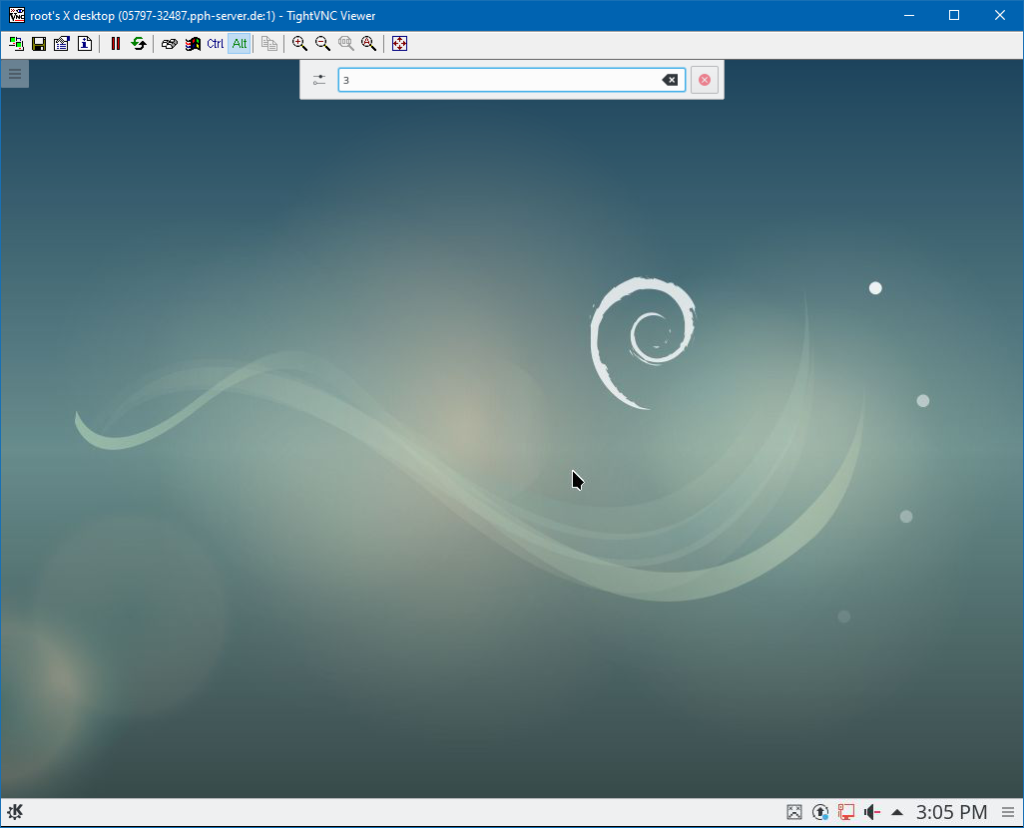
Yes, you can install a GUI on your KVM server if you are prepared to handle some technical challenges. Before you proceed, we recommend that you do not use a GUI for the best performance. If having a graphical interface is important to you, consider using our Windows Servers.

KVM Server

You are free to install a GUI on KVM servers because they use full virtualization and have guaranteed resources. However, please note that our host systems do not have graphics cards, so you will not have hardware acceleration. For the GUI you need your own VNC server on your system. Do not use the VNC console from the Cloud Manager for this: it is only emergency access, weakly protected and not permanently reachable.

Here are the steps you need to follow:

  • Install a desktop environment, such as KDE.
  • Install a VNC server.
  • Configure the VNC server so it runs the correct X server.
  • Connect to your VNC server using a VNC client, ideally through an SSH tunnel: ssh -L 5901:localhost:5901 root@your-ip, then localhost:5901 in your VNC client. This keeps the connection encrypted, and your VNC server only needs to listen on localhost instead of being open to the internet.

Disadvantages of GUI on KVM Servers

We recommend once again to avoid using a GUI. Here are the reasons:

Resource Consumption: A GUI uses more resources. A vServer without a GUI uses much less RAM when idle.

No Graphics Cards: Our host systems don’t have graphics cards, so there is no hardware acceleration. The CPU has to handle graphic rendering, which can make the GUI feel slow.

Most of the time, there are better and less demanding ways to run programs. The Linux console might seem intimidating at first, but once you get used to it, you’ll find that the commands are quite straightforward.

KDE GUI as Root: Do not attempt this.

How can I enable TUN/TAP on my vServer?

In this article we will explain in a few steps how you can easily activate TUN/TAP.

The activation is done with a few clicks.

Step by step to activation:

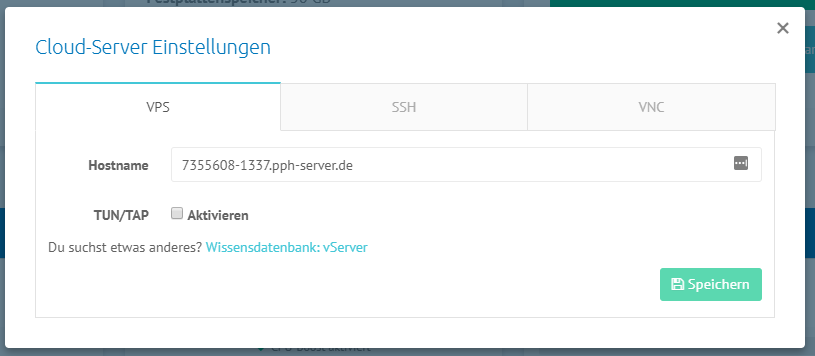
  • Open the vServer Administration in Vionity.com.
  • Select the administration of the desired vServer.
  • Click on “VPS Settings”.
  • Check the box “TUN/TAP”.
  • Click on the green “Save” button.
  • Restart your server so that the changes are applied at the network level.

Immediately after restarting your vServer, the change will be online and usable. If there are any problems, inform us immediately so that we can help you as soon as possible. If you have any questions, of course.

Cloud server settings

What happens if I overload my server?

Please note that according to the product terms and our general terms and conditions, you are obligated not to overload your services. Therefore, it is important to use your server properly and adjust your usage behavior accordingly. This topic is particularly relevant for virtual and dedicated servers.

To evaluate the load, we generally consider the server’s so-called load. The load is a comprehensive indicator of the server’s usage and includes CPU, I/O, and RAM usage, among others. As a general rule, the load should roughly be 1.25 per core. This is also the maximum limit allowed by us. Of course, it is possible that the server’s usage may temporarily exceed this limit. As long as it stays within reasonable limits, you don’t need to worry.

If, however, we determine that your server has a significantly high usage or it remains overloaded for a prolonged period of time (~one hour), we will unfortunately have to suspend your server. We use an automated system that constantly monitors the load of all servers and assigns points to each server, similar to the driving record in Flensburg. We have no influence on this system.

If your server has been overloaded and subsequently suspended, you need to contact our support. We will explain the product terms and the next steps to you again. After that, we will reactivate your server if you agree to comply with our general terms and conditions. In case of repeated suspensions, we reserve the right to terminate the contract.

P.S.: While this limit does not generally apply to KVM servers, they can still be suspended due to overload. This usually happens when mining software or continuous usage of 100% is detected over an extended period of time. Windows servers, in particular, are susceptible to this. So please make sure not to continuously use the full performance of your server.

This must be accepted explicitly: fixing the APT error

The error appears because Debian has published a new release and the Suite field of your repository changed, for example from stable to oldstable. Run apt-get --allow-releaseinfo-change update once, then apt-get update and apt-get upgrade work as usual again.

What the error looks like

A typical output on a Debian 12 (bookworm) server after the release of Debian 13 (trixie) on 9 August 2025:

root@vps:~# apt-get update
Get:1 http://deb.debian.org/debian bookworm InRelease [151 kB]
Reading package lists... Done
E: Repository 'http://deb.debian.org/debian bookworm InRelease' changed its 'Suite' value from 'stable' to 'oldstable'
N: This must be accepted explicitly before updates for this repository can be applied. See apt-secure(8) manpage for details.

Depending on the repository, the line can also mention 'Version', 'Codename', 'Origin' or 'Label'. Since Debian 13, the previous releases move one step further: Debian 12 is now oldstable and Debian 11 is oldoldstable.

Why apt asks for confirmation

apt remembers the metadata of every repository from the Release file. If that metadata changes, apt stops and wants you to confirm the change. This is a security feature described in man apt-secure: nobody should be able to switch your server to a different distribution unnoticed. Your server is not broken, nothing has been installed or removed.

Fix: accept the change

Accept the new release information once:

apt-get --allow-releaseinfo-change update

If you only want to accept a changed suite and nothing else, use the narrower option:

apt-get --allow-releaseinfo-change-suite update

With the interactive apt update (instead of apt-get), apt asks directly whether you want to accept the changes. Answer with y. In scripts and cron jobs this prompt does not appear, there you need the option above.

Afterwards install the pending updates as usual:

apt-get update
apt-get upgrade

Check before you accept: Suite or Codename?

A changed Suite is harmless. Your server stays on the same Debian version and keeps receiving updates for it. A changed Codename is different: it usually means your sources point to stable instead of a codename like bookworm or trixie. Accepting it would pull a whole new Debian version onto your server with the next upgrade.

Check your sources:

grep -rn "stable" /etc/apt/sources.list /etc/apt/sources.list.d/

If stable shows up as distribution, replace it with the codename of your installed version. You can find it with cat /etc/os-release (line VERSION_CODENAME). Depending on the version, the entries are in /etc/apt/sources.list or in .sources files below /etc/apt/sources.list.d/.

Still on Debian 11? Then it is more than this error

Debian 11 (bullseye) reached the end of its Long Term Support on 31 August 2026. Since then there are no more security updates, and the packages have moved to archive.debian.org. Tricky: deb.debian.org still serves parts of the package index, so apt-get update seems to work, but apt-get install fails with 404 Not Found.

To get apt working again for the upgrade, point the sources to the archive:

deb http://archive.debian.org/debian bullseye main contrib non-free
deb http://archive.debian.org/debian-security bullseye-security main contrib non-free

Remove lines with bullseye-backports, that repository no longer exists. This is only a bridge. Plan the upgrade: Debian recommends going from 11 to 12 and then to 13, one release at a time. Create a backup first in the Cloud Manager via “Backup erstellen”. Alternatively, reinstall the server with a current Debian image, but this deletes all data on the disk.

Common pitfalls

  • Third-party repositories: Repositories for PHP, Docker or databases can trigger the same message when their maintainer changes Origin or Label. Check the URL in the error line. If it is a repository you added yourself and trust, accept the change the same way.
  • “Release file is not valid yet”: This is a different error and usually means the clock on your server is wrong. See The time on my vServer is incorrect.
  • The error comes back: The option only accepts the change that exists right now. After the next Debian release (oldstable becomes oldoldstable) you will see the message once more.
  • Automatic updates stopped: unattended-upgrades and cron jobs fail silently on this error. After a new Debian release, run apt-get update manually once and check the output.

Related articles
How do I install Windows on my KVM server?

Have you ordered a KVM server from Prepaid-Hoster and want to install Windows on it? No problem! In this guide, we’ll show you step by step how to set up Windows on your server.

Guide to Installing Windows

Login to the Web Interface

First, log in to the Prepaid-Hoster web interface. You can find the login page at this link.

  • Open Server Management Click on your server in the navigation and select the server where you want to install Windows. Open the Cloud Manager.
  • Install Operating System In the server dashboard, you will see a large “Install Operating System” button. Click it to start the installation.
  • Select Operating System Choose “Windows Server 2019/2022 (Eval)” from the list of available operating systems. This version is free for testing.
  • Start Installation Confirm your choice and click “Start Installation.” The installation process will begin and may take a few minutes.
  • Establish Connection Once the installation is complete, you can connect to your new Windows server via Remote Desktop (RDP) using the credentials displayed in the web interface.

Frequently Asked Questions

Why do I need to install Windows myself? Our KVM servers come with a Linux operating system by default. Installing Windows takes only about 5 minutes.

What can I do if the installation fails? If the installation fails, first try again. If the problem persists, contact our support for further assistance.

Can I install a different version of Windows? Yes, you can also upload and install your own ISO file.

Support If you have any other questions or issues, our support team is always available. Simply contact us through the support ticket system in the web interface.

How to Change the Sinusbot Admin Password?

Forgot Sinusbot Password?

If you forget the password for your Sinusbot, it’s frustrating but not a big deal. You can easily reset it to a new password with just a few steps. Here’s how to successfully reset your password.

If you haven’t forgotten the password and just want to change it, go directly to the Password Reset page.

Activate Override Mode

Connect via SSH

First, you need to log in to your server via SSH. Once logged in, navigate to the Sinusbot directory. Usually, this is /opt/sinusbot.

Stop Running Instances

Next, you need to stop all running Sinusbot instances. We’ll use a method to stop all processes named “sinusbot”:

pkill -f ".sinusbot"

Log in as Sinusbot User

To start the Sinusbot, you need a separate user, usually named sinusbot. Log in as this user in your SSH console.

Use the following command, replacing “sinusbot” with the username you chose during installation if needed:

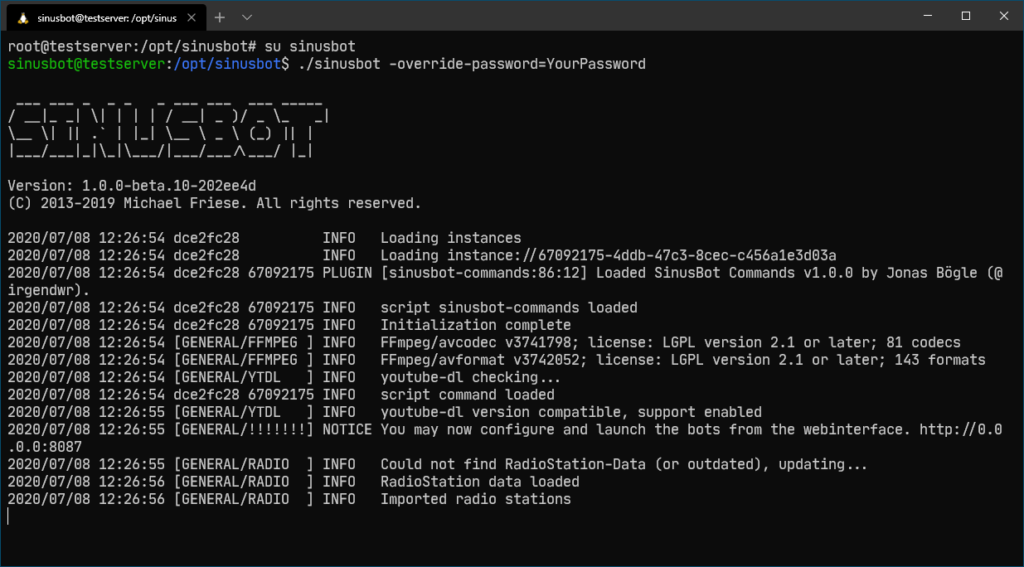
su sinusbot

Start Rescue Mode

Now that you are logged in as the Sinusbot user, you can start the Sinusbot in password override mode. Warning: This mode is only for resetting the password and is not secure for general use. It overrides the admin password for the current session.

Use the following command to start the PW Reset mode:

./sinusbot -override-password=temppassword123
Sinusbot in “Rescue Mode”

The Sinusbot is now in Rescue Mode. Important: Keep the SSH session open; do not close it.

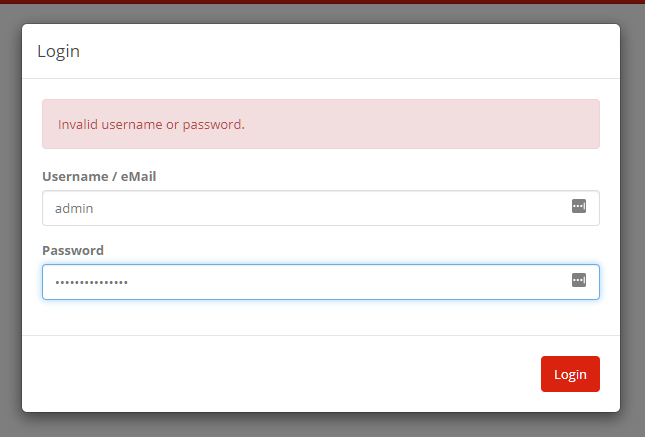
Open the Sinusbot web interface at Server-IP:8087 in your browser. You can log in with the user “admin” and the temporary password “temppassword123”.

Reset Sinusbot Password

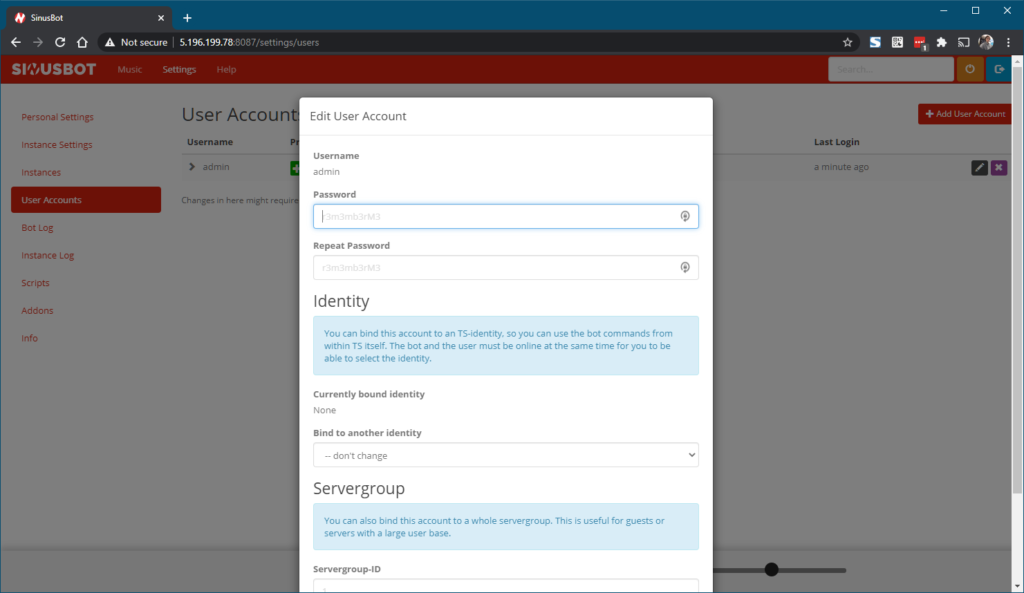
After logging into the web interface, you need to set a new password for the admin user. Navigate to “Settings” > “User Accounts” and click the “Edit” icon next to the admin user. In the dialog that opens, set a new password for the admin user and save the changes.

You will be automatically logged out. Do not log in with the new details yet.

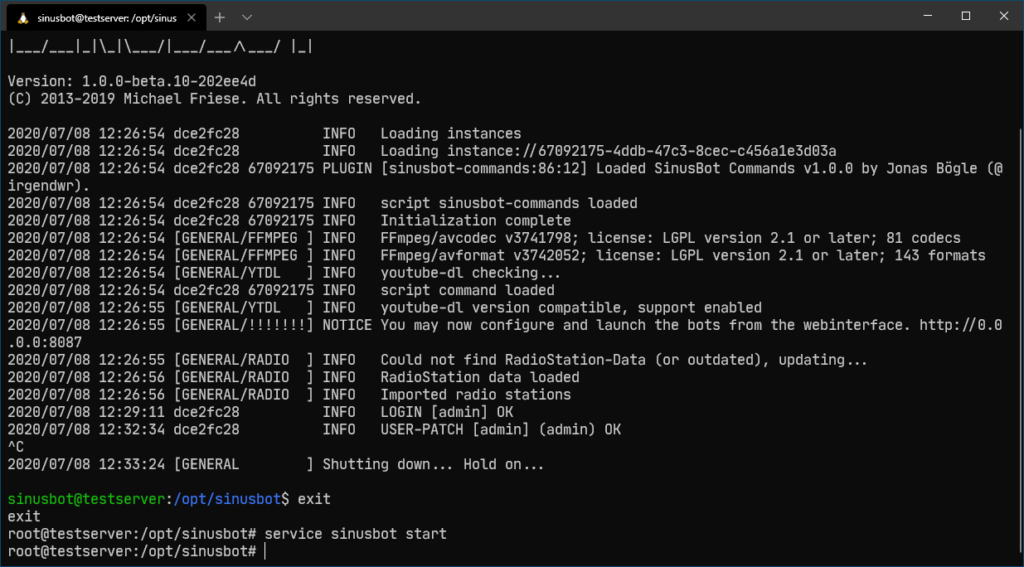
Go back to the SSH session and press CTRL+C to exit Rescue Mode. Then log out from the Sinusbot user and switch back to the root user.

exit

You should now be logged in as the root user. Start the Sinusbot normally with:

service sinusbot start

Go back to your browser and refresh the page. Now log in with the new admin credentials. The username is “admin” and the password is the one you just set. If you forget the password, start over.

Completed Sinusbot PW reset

Can I change the location of my server?

Maincubes Data Center

No, unfortunately, it is not possible. Our vServer host systems are hosted at our partner Synlinq near Frankfurt. This allows us to provide top-notch DDoS protection and low latencies.

All KVM and OpenVZ host systems are located at this Frankfurt location.

Do you still have servers at OVH?

In May 2022, we moved our entire infrastructure that we had at OVH to the modern Maincubes Data Center. We no longer offer servers at OVH.

Do you still have servers at Hetzner?

No, our virtual servers are exclusively delivered in our own infrastructure. Only dedicated servers are sourced from our hosting partner Hetzner.

Do you still have servers in France?

No, all servers have been stationed in Germany since mid-2022.

Can I move my server to a different location?

A location move is not possible as all customer servers are located at the same location.

Image source: https://www.maincubes.com/rechenzentrum/rechenzentrum-frankfurt/housing-frankfurt/

How can I connect my domain to my vServer?

If you have a domain and a vServer at Prepaid-Hoster, you can easily connect the domain to your server with our AutoConnect feature or take over the settings yourself.

If you want to connect the server manually with the IP address of the server, enter the IP address in all fields with the type “A“.

Connect automatically

Click on your domain in the web interface and go to the DNS settings. There you will find a button with the label “Connect to PPH Server“.

DNS actions in the web interface

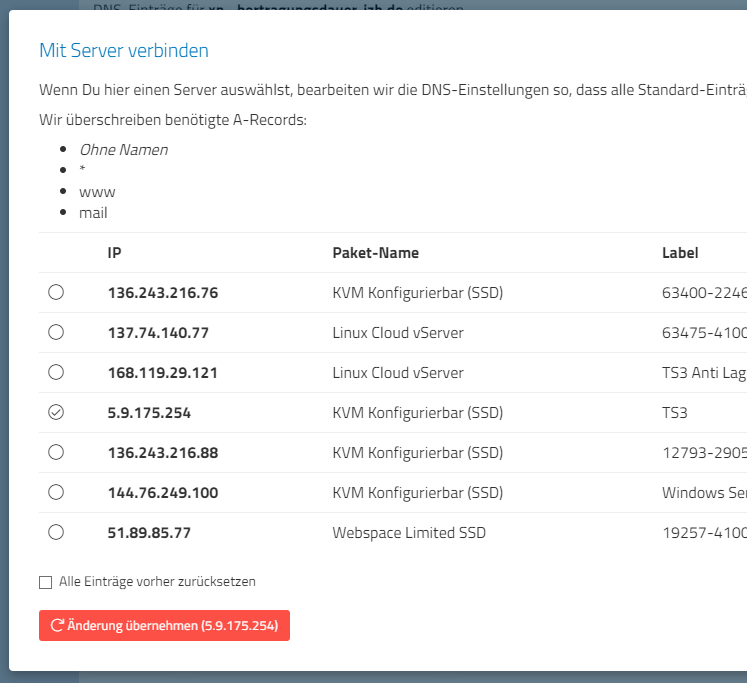
If you click on it, a dialog opens. There are all services listed, which you can use to connect to your domain. Select the desired server and then press Apply. Now all settings will be set automatically as they are needed for the DNS. Your previous settings will be overwritten, connections to MC or TS3 servers will be preserved. Provided you don’t want to reset all entries before.

Connect to server dialog

Please note that the change in DNS can take up to 24 hours.

Domain at another provider

If you have a domain with another provider, please check the FAQ there. Basically: You have to set the IP address of your vServer as A-Record “@” and “*”. Since the DNS administration is different for each provider, we can’t provide detailed instructions. Please contact our support if you have any questions. Feel free to send us screenshots of your configuration, so we can tell you where there might be problems,

Please note that the change in DNS can take up to 24 hours.