Windows: Internal Error with Remote Desktop

Problem symptom

When connecting to Remote Desktop, an error message appears that contains “Internal Error” or “Internal Error”.

Problem Description

According to current estimates, the problem occurs when a botnet tries to attack open RDP servers. These do not close the connection properly, so the connection queue fills up. We can currently assume that changing the RDP port will result in a permanent fix, since the botnets only attack the default port.

Problem solution: Change RDP port
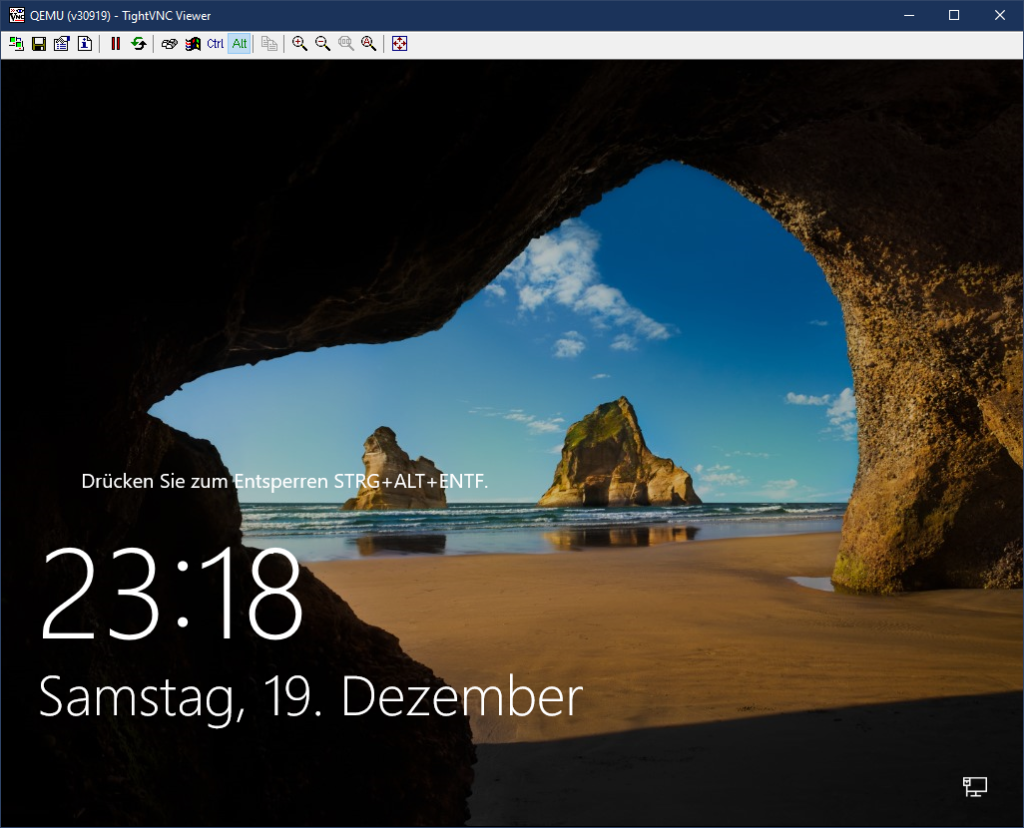
TightVNC Viewer: Windows
  • Log in via WebVNC. You will find the data and access to it in the web interface.
  • Unlock the screen by sending the VNC program “CTRL+ALT+DEL“.
  • Log in to the administrator account. Note: It is possible that an American keyboard layout prevails in the VNC window. Check the password with the “View password in plain text” function in the right area of the input mask. Z and Y may be reversed.
  • On the remote server, after logging in, open the start bar and type “regedit”.
  • Search in the key tree on the left for the following key:
  • HKEY_LOCAL_MACHINE > System > CurrentControlSet > Control > TerminalServer > WinStations > RDP-Tcp.
  • Open the key folder and search for “PortNumber“.
  • Double click to open a small window. Select “Decimal“. In the input field enter the desired port. Example: 3390, 3391, 3392, 9999. Important: The port must be free!
  • IMPORTANT: Make sure that the new port is released by the Windows Firewall!
  • Restart the server.

After that, the server is accessible via the new port. You have to append the port to the IP address when connecting to the server, for example: 10.10.2.4:3390

If you have any questions, please contact our support team.

Will my data remain when I upgrade?

Yes. Your data and your term remain when you upgrade, you do not have to reinstall anything. This also applies when you book more storage: the disk gets bigger, its contents stay untouched.

After the upgrade: stop and start

The new resources only become active once you stop and start the server in the control panel. A restart from within the operating system is not enough.

More storage does not automatically mean more space

The disk grows, but the partition on it does not always grow with it.

  • Linux: The new size is usually used automatically.
  • Windows: You extend the drive yourself, see Windows hard disk expansion.
  • Storage still missing: Existing snapshots can block the resize. Help is in this article.

Good to know

  • You can currently change only one option per upgrade. For RAM and cores, do two upgrades in a row.
  • Storage cannot be reduced, a downgrade is only possible for cores, RAM and options.
  • An upgrade is no substitute for a backup. A current backup outside the server never hurts.

How Do I Reset My Root or Admin Password?

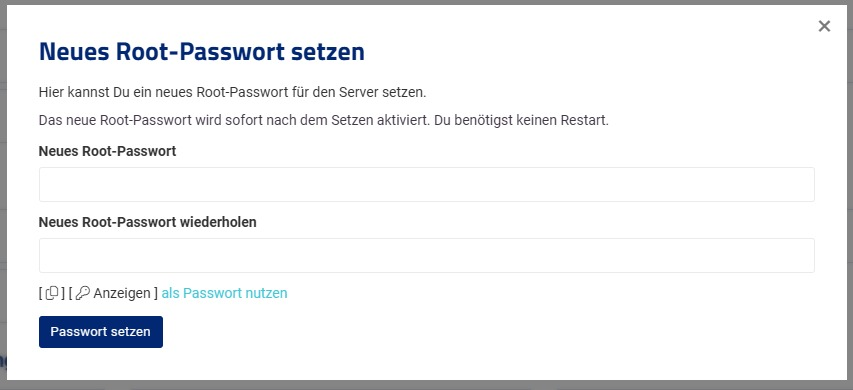
To change the root password of your virtual server, go to the Cloud Manager (vionity.de) and click on “Root Password” in the actions menu. A dialog box will open where you can enter the new root password. After submitting, your password will be reset immediately.

Reset Server Root Password

If you have any problems, please contact our support team for assistance.

Important Information:

  • You should disable root password authentication and only use it when accessing your server via VNC. Instead, use SSH keys.
  • The server must be turned on for the root password to be changed live.
  • To reset to the default password, you can click “Use [ Show ] as password” in the dialog. The default password will then be automatically inserted in the fields.

How can I change my server’s hostname?

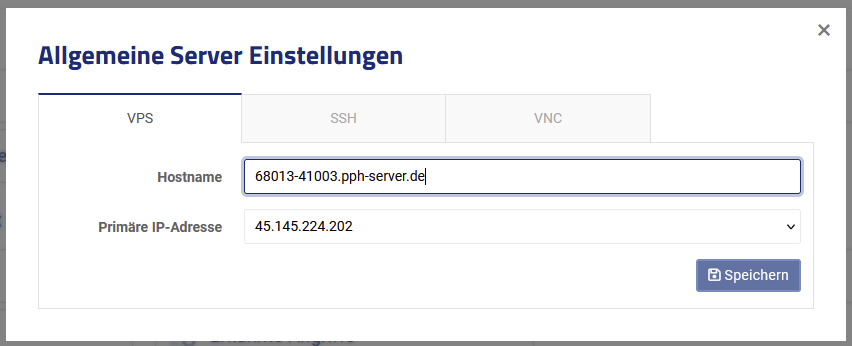
In this post, we will explain how you can change the hostname of your virtual server.

  • Log in to the web interface.
  • Go to the Cloud Manager of your virtual server.
  • In the Actions box, click on Hostname.
  • Now change the hostname in the designated field.
  • Click Save to save the new hostname.

The new hostname will be set immediately. You might need to log in again via SSH to see the new hostname.

Windows hard disk expansion

In this article we will show you step by step how to expand the hard disk of a Windows server.

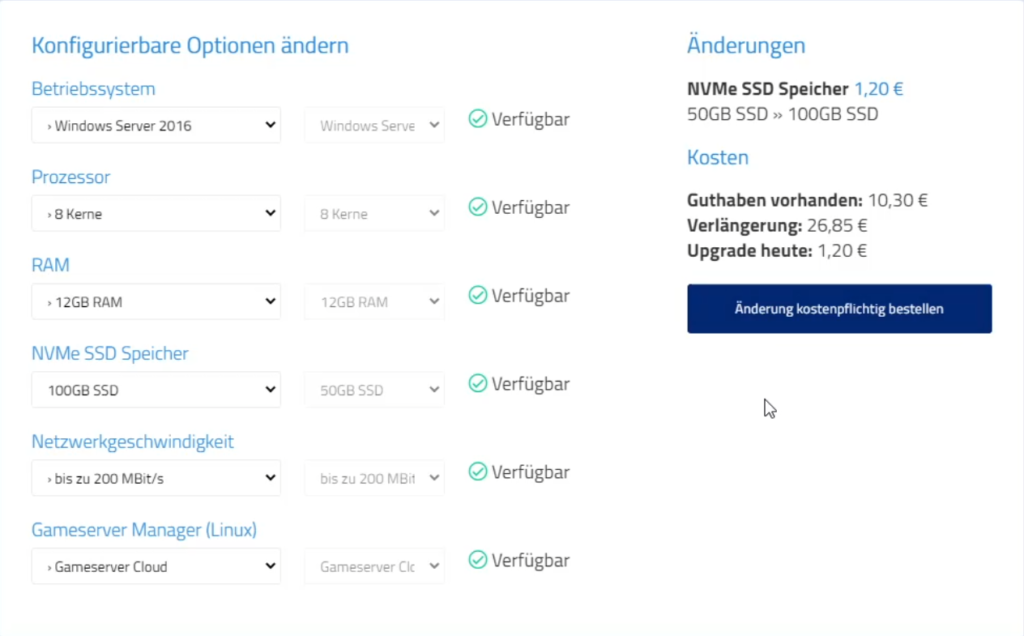
To be able to expand your hard disk, you first need “unallocated space“. So open the upgrade/downgrade form of your Windows server. Then select a hard disk upgrade.

Upgrade durchführen

Change configurable options

Order the desired configuration by clicking on “Order change with costs“.

Restart Windows Server

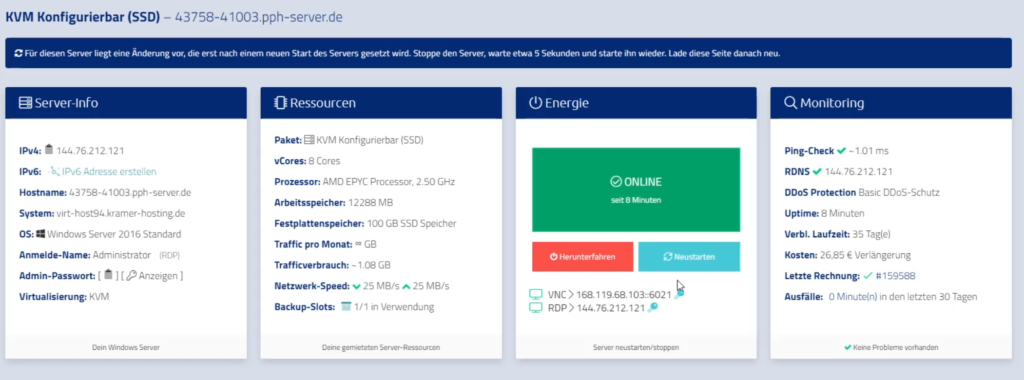
After that, go back to the Cloud Manager. Wait for about 1-2 minutes. You should see a message stating that changes are coming for the server. Perform a restart of the server.

There are changes for the server

Manually expand hard disk

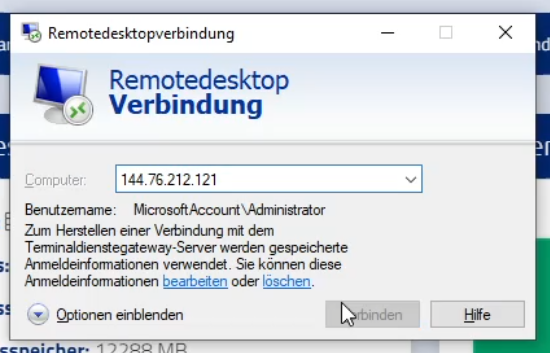
After a reboot (this may take a while, please wait patiently) connect to your Windows server via Remotedesktop.

Microsoft Windows Remote Desktop Connection

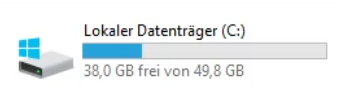
After you have logged in to the server, you can view your C: drive. It still has the same size as before. This is because we do not allocate the additional space ordered to a partition. You have to do that yourself.

C: has a size of only 50 GB

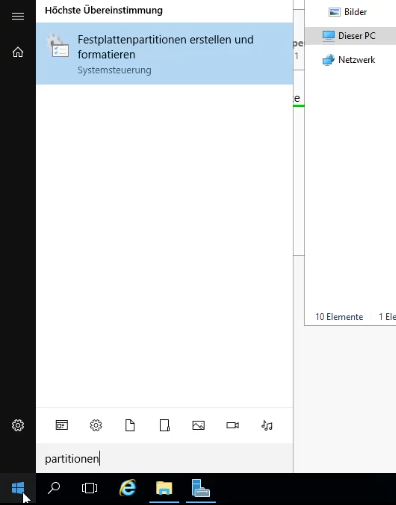
Click the Start button and search for “Partition“. You should get a program suggested. Open it. If the program is not displayed, you can also type “diskmgmt.msc“. This is guaranteed to work!

Create and format hard disk partitions

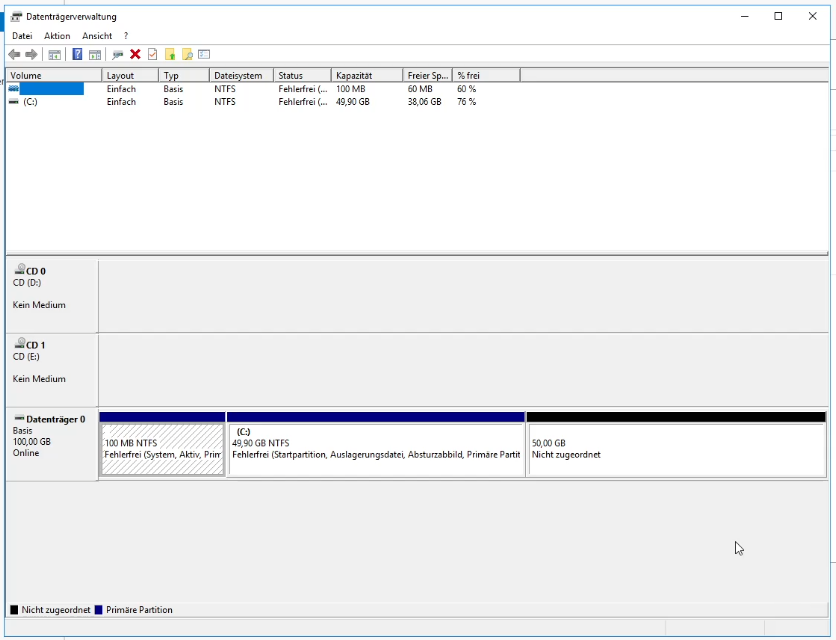
Maximize the window that opens best. Wait until the content is loaded. You should now find a black colored block. This is the unallocated memory.

Unallocated space

You now have several options to use this space. You can create a new partition from the unallocated space or append the space to C:. The latter is the most popular approach.

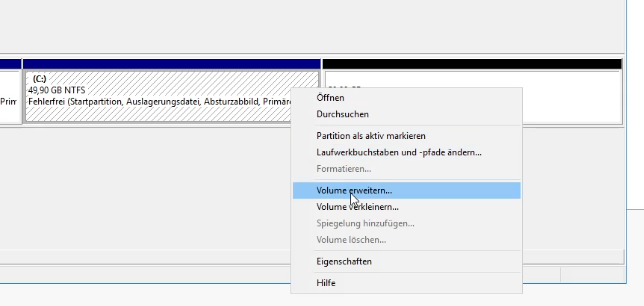
Right click on the blue colored area with the drive letter C:. In the context menu that opens, select “Extend volume“.

Expand volume

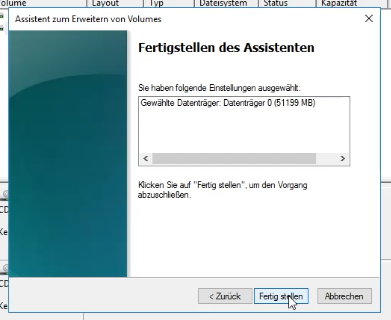
A dialog opens. It is sufficient to click on “Next” in this wizard and on “Finish” in the last step. The free memory space is automatically made as an extension.

Assistant for expanding volumes

The changes are now applied live. The process does not take long. The black colored unallocated area should now disappear and be merged with C:.

Hard disk expansion performed

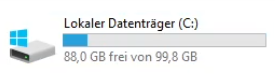
Validate the result in Explorer by looking at the size of the disk.

The hard disk was expanded

The operation is completed. The hard disk space has been increased.

If something is different during this process or if you have any problems, please contact our support at any time. We are happy to help!

Am I allowed to mine on the server?

No! Mining (of any kind) is basically forbidden on all virtualized servers. It is the nature of data mining that this consumes a lot of processor power.

But XYZ is not mining at all!”

– Some customer

This may be technically correct, but we still consider it an overuse of resources. The issue is not whether it is “mining”, but ultimately whether there is a high workload or above-average wear and tear due to the process. Virtual servers are not suitable for this type of program.

Possible consequences of overuse

In all likelihood, we will automatically lock your server if resources are overused or permanently exhausted. The same applies to other disturbances that originate from your server. This regulation is based on our terms and conditions §7, paragraph 2.

If it is a test server, we will delete the server immediately.

Especially with virtual servers this is a bottleneck for other customers and causes a bad quality on the host system. You rent a shared hosting and have accepted the terms and conditions when ordering. These state that permanent overloading of the server must be avoided.

Please be fair and pay attention to other people who need processing power for other programs.

If you have any further questions about this, please feel free to contact us at any time.

Can I Use Docker on My vServer?

Docker Logo

Docker is a container-based technology that creates Linux containers. Because it makes deep changes to the system, it might not work perfectly with every virtualization method.

You can use Docker on all virtual servers from Prepaid-Hoster. However, there are a few details you should keep in mind.

Our Recommendation Upfront

If you know you want to use Docker and want to be on the safe side, you should rent a KVM server right away.

Virtualization Technology Compatibility
OpenVZ (no longer offered) Possible limitations
KVM No restrictions
Is Docker compatible with OpenVZ and KVM?

Docker on a Cloud vServer

You can usually run Docker on a Cloud vServer without any problems. However, there are some limitations. Since a Cloud vServer is managed with a container-based virtualization method (OpenVZ7), compatibility issues can arise. It is hard to say in advance which Docker images will work on an OpenVZ 7 server, as it depends on the Docker setup you need.

Another issue can be the kernel. Docker often needs newer kernel components that might not be available in the OpenVZ Virtuozzo kernel.

Docker on a KVM Server

KVM uses full virtualization. This means the guest system is independent of the host system. With a KVM server, you also get your own kernel that isn’t shared or virtualized with other customers.

Because of this, you can use Docker without any restrictions on a KVM server.

If you have any questions about this topic, please feel free to contact our support team. Keep in mind that we cannot guarantee specific compatibility on Cloud servers.
How do I connect via VNC?

In this article we will explain how you can manage your server via VNC.

With VNC you can easily access your server. The advantage is that it works even without an active network connection and SSH is not needed for authentication. VNC is the first place to go if, for example, you have broken the SSH configuration and need to undo changes.

VNC is emergency access

The VNC console is meant for fixing small problems, such as a broken SSH or network configuration or a system that no longer boots. It is not made for everyday work:

  • No permanent connection: Even if you have enabled VNC, we do not guarantee that the VNC server stays reachable. If our system detects many login attempts in a short time, for example, it is switched off automatically.
  • Publicly reachable: The VNC server can be reached from the internet and is only protected by a password of at most 6 characters.
  • Not encrypted: A direct connection via the address with ::59XX is not encrypted. Everything you type in the console, including passwords, travels across the network in plain text.

So switch VNC off again once your problem is fixed. For permanent access, set up a secure protocol on the server: SSH on Linux, ideally with SSH keys, and Remote Desktop (RDP) on Windows.

There are two ways to connect. You can use the WebVNC directly in the web interface or you can connect directly via a program.

VNC directly in the web interface

So that you do not have to install an extra program, you can connect in the web interface via the browser. You will then see the input line of your virtual server in a browser window.

  • Open the cloud manager of the server you want to connect to
  • Navigate to the actions
  • Click on VPS settings
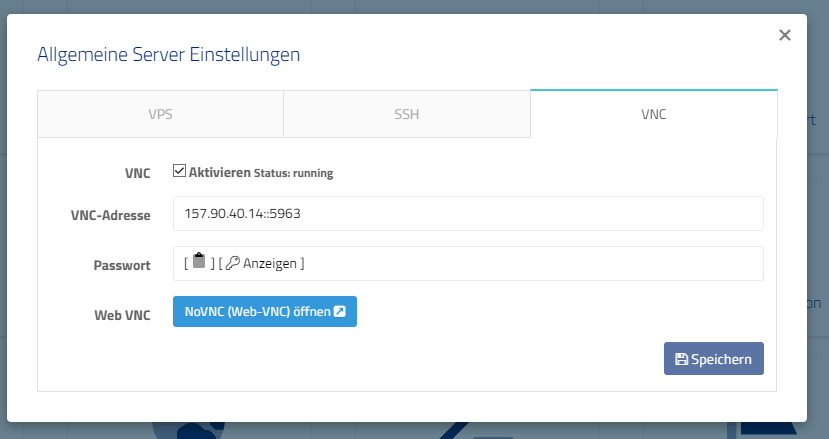
  • Open the VNC tab
  • Enable VNC if disabled. Restart the VPS afterwards.
  • Click on Open NoVNC (Web-VNC)
  • In the new window enter the password that is displayed in the VNC tab.
NoVNC settings

Use program

  • Log in to the web interface.
  • Navigate to the Cloud Manager of the vServer.
  • Click on VNC data in the Actions field.
  • Enable “VNC” if you haven’t already.
  • Open a VNC program, such as TightVNC Viewer.
  • Enter the VNC address in the Remote Host field.
  • Example: 1.2.3.4::5960
  • Click Connect.
  • Enter the password that is displayed in the web interface VNC dialog. Confirm with Enter.
  • Now you are connected to your server via VNC console.
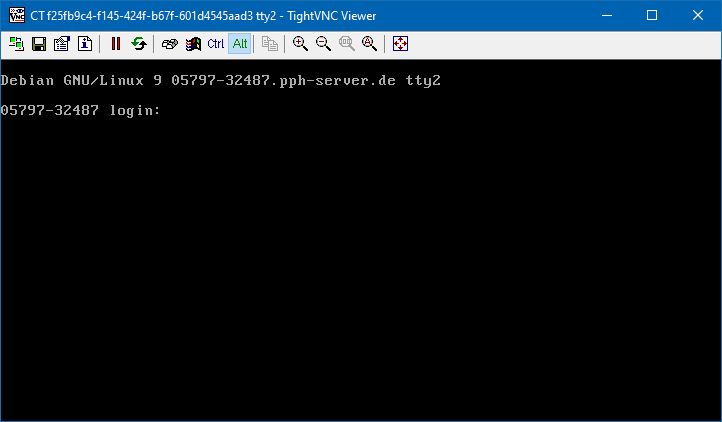
TightVNC Viewer

Please note that we change the address of your VNC server from time to time. This has security reasons. So check in the webinterface if you still have the current address.

The connection is refused

  1. Stop the server completely in the web interface and start it again. A reboot from inside the operating system is not enough. Then test again.
  2. If that does not help: disable VNC in the “VNC” tab, stop the server, wait a moment and start it.
  3. Enable VNC again and trigger “Restart” for VNC there. Check whether the address or password has changed.

If VNC stops working again after a day or two, the VNC server was most likely switched off for security reasons, see VNC is emergency access. This is intended and not a bug. Set up permanent access via SSH or RDP instead.

SSH Port: Default 22, Connecting to and Changing a Custom Port

SSH uses port 22 by default. If your server listens on a different port, pass it with -p when connecting. Watch out: for scp the flag is -P, with a capital P.

ssh -p 2222 root@203.0.113.10
scp -P 2222 file.txt root@203.0.113.10:/root/
rsync -e "ssh -p 2222" -av folder/ root@203.0.113.10:/root/folder/

To see which port your SSH server is currently listening on, run this on the server:

ss -tlnp | grep ssh

Save the port in your SSH config

So you don’t have to remember the port, add the server to ~/.ssh/config on your own computer:

Host myserver
    HostName 203.0.113.10
    User root
    Port 2222

After that, ssh myserver is enough. scp and rsync read this file too.

Why change the SSH port?

A port other than 22 keeps a lot of automated brute force attempts away, because bots mostly probe well-known ports. It is not real security, but your logs get much quieter. You should still protect the server with SSH keys and tools like Fail2Ban.

Change the SSH port in Vionity

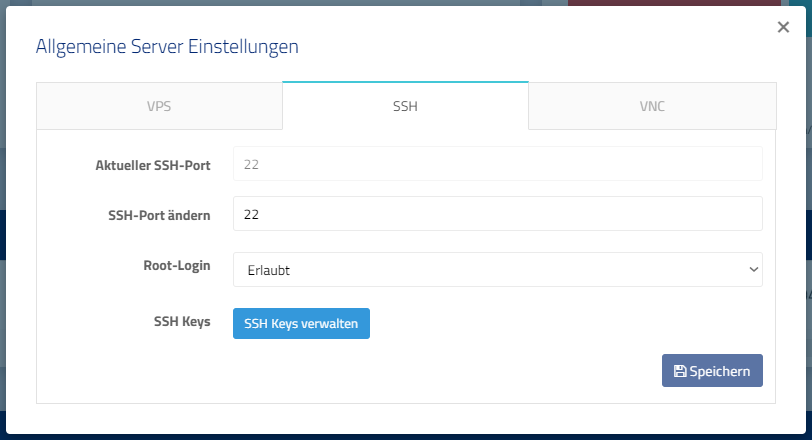
SSH settings in the Cloud Manager
VionityCP SSH Settings
  • Open the Cloud Manager of the server whose SSH port you want to change.
  • Click “VPS Settings” and open the “SSH” tab.
  • Enter the port you want in the “Change SSH Port” field. Use a free port above 1024.
  • Click “Save”. The configuration is updated in the background and the SSH server restarts.

Important: If you run your own firewall (ufw, nftables, firewalld), open the new port first, for example with ufw allow 2222/tcp. If you forgot, you can still reach the server via VNC and fix it.

Change the SSH port manually

  1. Open the new port in your firewall, see above.
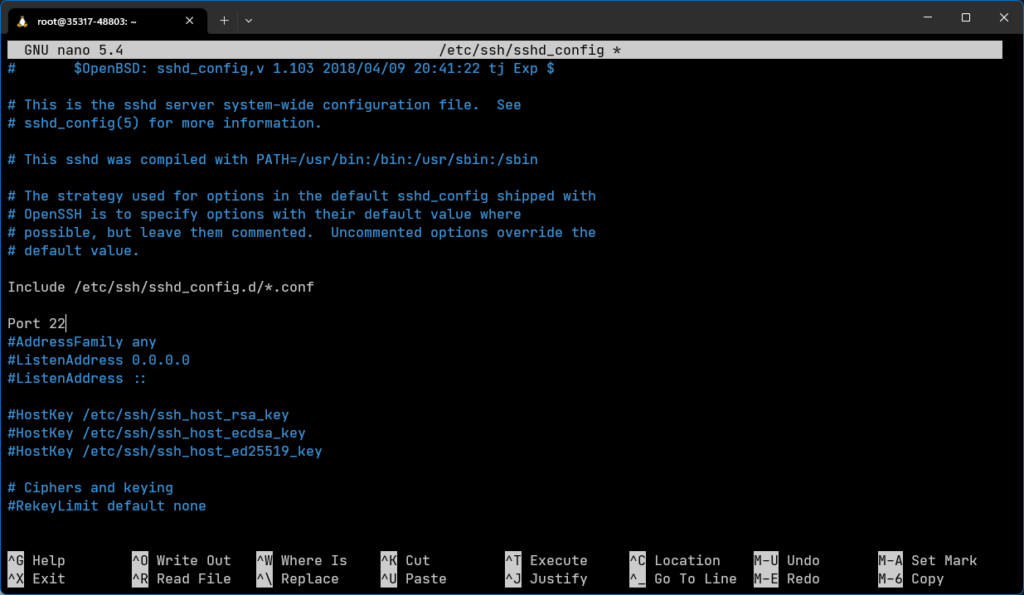
  2. Open /etc/ssh/sshd_config, for example with nano. Find the line with Port. If it starts with #, remove the character, otherwise the line is ignored. If it doesn’t exist, add it near the top, for example Port 2222. Pick a port between 1024 and 65535.
  3. Check the configuration with sshd -t. If it prints nothing, everything is fine.
  4. Restart the SSH server with systemctl restart ssh (on some systems the service is called sshd). Don’t close your current SSH window yet.
  5. Test the connection in a second window with ssh -p 2222 …. If something goes wrong, fix it through the first session that is still open.
Excerpt from the file /etc/ssh/sshd_config
The /etc/ssh/sshd_config file

Ubuntu 24.04: The port doesn’t change?

Newer Ubuntu releases (22.10 and later) start SSH through a systemd socket. Restarting the service is not enough there, and SSH keeps listening on port 22. After changing sshd_config you need:

systemctl daemon-reload
systemctl restart ssh.socket
ss -tlnp | grep ssh

Systems with SELinux

If SELinux is active, for example on distributions from the Red Hat family, sshd may only use the new port after you allow it: semanage port -a -t ssh_port_t -p tcp 2222

When not to change the SSH port

If a DDoS filter protects your server and it runs a service that needs this protection, keep SSH on port 22. The firewall only reliably recognizes SSH traffic on the default port. On another port it may misclassify it. Your connection then drops suddenly and your IP address is blocked for a few minutes.

Windows Server: No Ping

If your Windows server shows as unreachable in the web interface, please follow these steps:

  1. Check if the server is turned on
    Make sure your server is actually powered on and has fully booted up.
  2. Check if there is an IPv6 connection
    Ping your server’s IPv6 address to see if it is reachable using IPv6.
  3. Check for a status update in the status portal
    Log into our status portal and see if there is a message saying that the host system is down or under maintenance. If there is a message, please wait until it is cleared.
  4. Stop and restart your server (if there is no status message)
    If there is no message in the status portal, stop your server using the web interface and then start it again. After restarting, wait a few minutes for all services to come up.
  5. Check if Ping is enabled in Windows
    By default, Windows blocks ICMP requests. To allow ping replies, connect to your Windows server using Remote Desktop as an administrator and run the following command: netsh advfirewall firewall add rule name="All ICMP V4" dir=in action=allow protocol=icmpv4 After you run this command, your server should reply to pings again and the error in the web interface will disappear shortly.
  6. Create a WinMTR test at home if there is packet loss
    If your server still shows packet loss even though it replies to pings, run a WinMTR test from your home computer against your server’s IP address. Then send us the WinMTR results in a support ticket so we can analyze the problem further.

If you have any more questions, please do not hesitate to contact us.