Why Don’t I Have the Expected Bandwidth?

Is your download crawling like a snail, or does your deployment pipeline seem to take forever? This guide explains why this happens and how to get back up to speed quickly.


Plan Quick Check

Find out the maximum bandwidth available in each server plan. The port speed represents the highest possible speed your virtual server can reach.

Plan Maximum Port Speed
Configurable vServer up to 2 Gbit/s
Smart Value & Smart Essential up to 1 Gbit/s
Which vServers offer what network speed?

Bits vs. Bytes – The Classic Stumbling Block

To clear up any past confusion, here is the difference between Gbit/s and GB/s.

Unit Means … Quick Formula
Gbit/s Gigabits per second (bit measurement) 1 Gbit/s ≈ 0.125 GB/s
GB/s Gigabytes per second (byte measurement) 1 GB/s = 8 Gbit/s
Gbit/s vs. GB/s

1 Byte equals 8 Bits. So if your monitoring shows 1 Gbit/s, that is about 125 MB/s – not 1 Gigabyte per second.


Our Standard Power: 1 Gbit/s

Every virtual server starts with 1 Gbit/s of symmetrical bandwidth – for both upload and download.

This speed is more than enough for:

  • Continuous integration pipelines
  • HD video streaming
  • High-traffic online shops
  • Fast APT downloads
  • Quick downloads for game servers

Upload Lagging? Download Off?

In rare cases, there might be an issue. Just contact our support team – we will check the problem and talk with you about the next steps.


Example Calculation

600 Mbit/s ÷ 8 = 75 MB/s

If you see 75 MB/s during a speed test, it means you are using 600 Mbit/s – which is well within the “up to 1 Gbit/s” range.

Still Having Problems?

We are happy to help if you’re having trouble with download or upload speeds. It is always useful if you send us your speed test results – just make sure to use a good test location (in Germany).
Can I Use My Own ISOs?

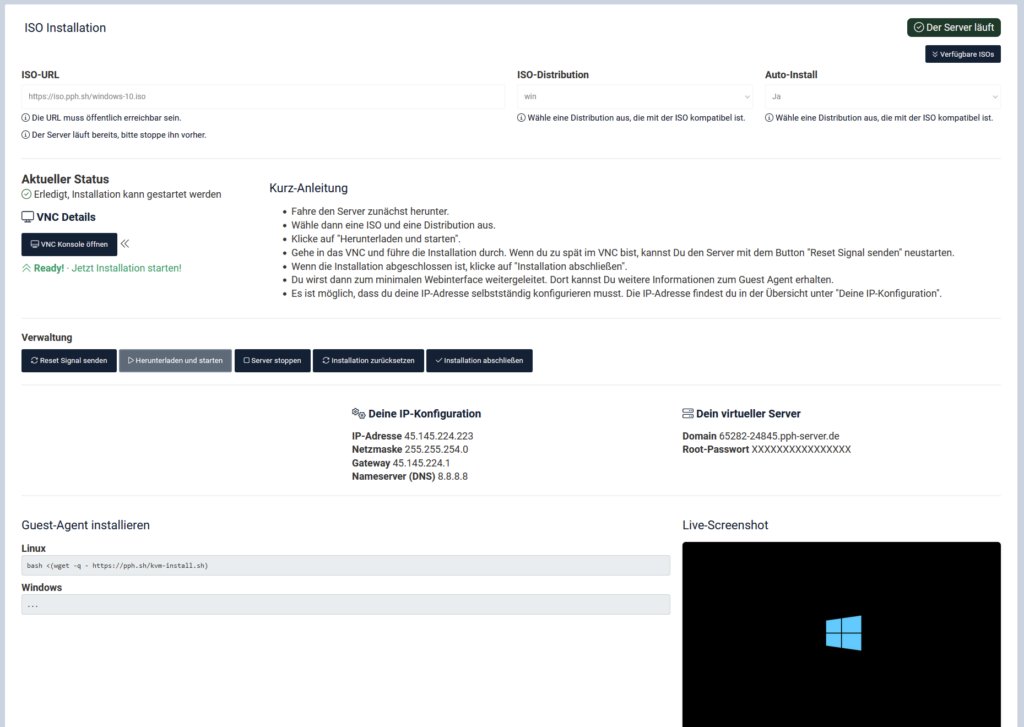
Yes, you can use your own ISO files to install operating systems with Prepaid-Hoster. You can either choose from a list of our ISO files or provide your own. There are no costs involved, and the storage for the installation is free. To do this, you need to first enable the ISO functionality in the expert settings in the VCP settings.

How Do I Enable the ISO Function for My Server?

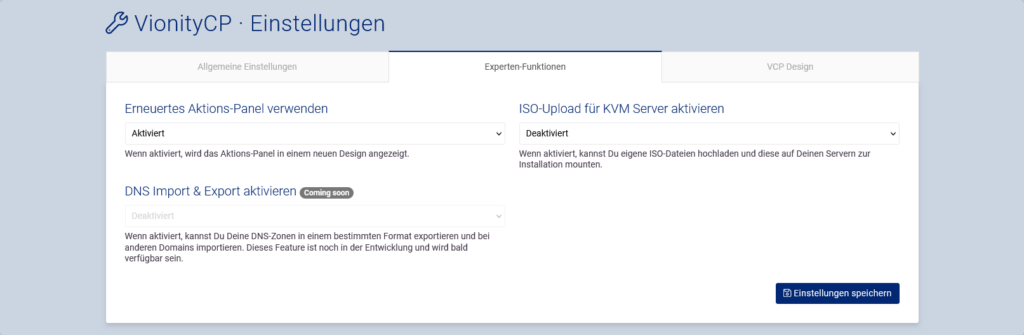
To enable the ISO function for your server, you first need to log into Vionity and then:

  • Open the VCP settings
  • Go to the “Expert Functions” tab
  • Set “Enable ISO Upload for KVM Servers” to enabled.

Please note, we can only offer a basic web interface if you do not install a guest agent.

Attention: This function is only available for KVM servers (configurable and package). It is technically not possible with OpenVZ servers.

ISO Installer

If you have not set up a server using an ISO before, it might be better to use a predefined operating system template. We only offer basic support for installing ISO files.

Using Your Own ISO File

To use your own ISO file, you need an HTTP link. Vionity will download this file and attach it to your server.

ISO Files

We offer the following ISO files on our web interface that can be installed on KVM servers:

windows-10.iso
windows-win-2016.iso
windows-win-2019.iso
windows-win-2022.iso
ubuntu-18.04-mini-amd64.iso
ubuntu-18.04.5-server-amd64.iso
ubuntu-20.04.1-legacy-server-amd64.iso
ubuntu-20.04.6-live-server-amd64.iso
ubuntu-22.04.2-live-server-amd64.iso
ubuntu-23.04-live-server-amd64.iso
proxmox-backup-server_2.0-1.iso
proxmox-ve_7.1-1.iso
proxmox-ve_7.2-1.iso
proxmox-ve_7.4-1.iso
proxmox-ve_8.0-2.iso
pfSense-CE-2.6.0-RELEASE-amd64.iso
jammy-live-server-amd64.iso
focal-live-server-amd64.iso
debian-10.13.0-amd64-netinst.iso
debian-11.7.0-amd64-netinst.iso
debian-12.0.0-amd64-netinst.iso
debian-9.13.0-amd64-netinst.iso
Zorin-OS-16.3-Core-64-bit.iso
Rocky-8.8-aarch64-boot.iso
Rocky-8.8-x86_64-boot.iso
Rocky-9.2-aarch64-boot.iso
Rocky-9.2-x86_64-boot.iso
OPNsense-22.7-OpenSSL-dvd-amd64.iso
OPNsense-23.1-OpenSSL-dvd-amd64.iso
Fedora-Server-netinst-aarch64-37-1.7.iso
Fedora-Server-netinst-aarch64-38-1.6.iso
Fedora-Server-netinst-x86_64-37-1.7.iso
Fedora-Server-netinst-x86_64-38-1.6.iso
CentOS-7-aarch64-NetInstall-2009.iso
CentOS-7-x86_64-NetInstall-2003.iso
CentOS-7-x86_64-NetInstall-2009.iso
CentOS-8.5.2111-x86_64-boot.iso
CentOS-Stream-8-20230710.0-aarch64-boot.iso
CentOS-Stream-8-aarch64-20220513-boot.iso
CentOS-Stream-8-x86_64-20220506-boot.iso
CentOS-Stream-9-20230410.0-aarch64-boot.iso
CentOS-Stream-9-20230410.0-x86_64-boot.iso
AlmaLinux-8.8-aarch64-boot.iso
AlmaLinux-8.8-x86_64-boot.iso
AlmaLinux-9.2-aarch64-boot.iso
AlmaLinux-9.2-x86_64-boot.iso

My upgrade is not available due to technical limits. What does this mean?

When you try to change the resources to your KVM server via the web interface, we always check in the background immediately and automatically whether the desired performance is available. We always need to provide enough performance buffers so that all customers can access their guaranteed performance.

We do not overbook KVM host systems!

It is important to us that our KVM server host systems are not overbooked. This is essential to maintain the quality. Only this way we can keep the quality in a good condition.

If your upgrade is not available due to technical limits, you will have to wait a while. This message means that an upgrade would lead to overbooking of the host system.

In such a case we cannot perform the upgrade for you.

Ok, when can I upgrade then?

As soon as the resources become free due to cancellations or expiration of servers of other customers, you can perform the upgrade.

I can’t wait!

If you need the upgrade immediately, you may be able to rent a new KVM server. This will then be automatically created on a host that has sufficient resources available. Please check beforehand if KVM servers are in stock. You will be informed about this in the order process.

I want to reduce my hard disk space

Please note that KVM server hard disk space cannot be downgraded under any circumstances. This is due to technical conditions of the virtual hard disk.

If you have any questions about this, please contact our support team.

What operating systems are available?

For vServers (OpenVZ), we provide the following operating systems (64 Bit):

  • Ubuntu 18.10, 19.10, 20.04
  • Debian 9.9, 10.2, Debian 11.0
  • CentOS 6, 7
  • Fedora 22, 23

You cannot run and/or install a Windows operating system on our vServers. As an alternative, you can use the Linux package WINE, for example.

For KVM vServers, we provide the following installation templates:

  • Ubuntu 19.10, 20.04
  • Debian 10.0, Debian 11
  • CentOS 7.6
  • Fedora 27
  • Windows Server 2019

In addition, you can always install Windows Server 2019. It is also possible to switch to a Linux operating system later free of charge.

Attention: When reinstalling the operating system, all data will be lost permanently!

How can I manage my vServer?

Everything you need to manage your vServer

In this article, we explain which management interfaces or programs you need to fully manage and use your vServer.

First of all, you have free access to our web interface at www.vionity.de. There, you can set up, manage your vServer, and use additional features.

Cloud Server Management
Prepaid Hoster Cloud Manager

To manage the internal workings of your vServer, you need a shell program. We recommend PuTTY.

If you want to upload or download files, you need an SCP-capable program to connect to your server via SFTP.

If you have questions, you will find several contact options in the web interface to reach us quickly.

Links:

How do I install a database on my server?

We offer you a convenient and fast way to install a database server in our app installer. You need this for example for game servers, plugins or websites.

For administration you can also install phpMyAdmin automatically.

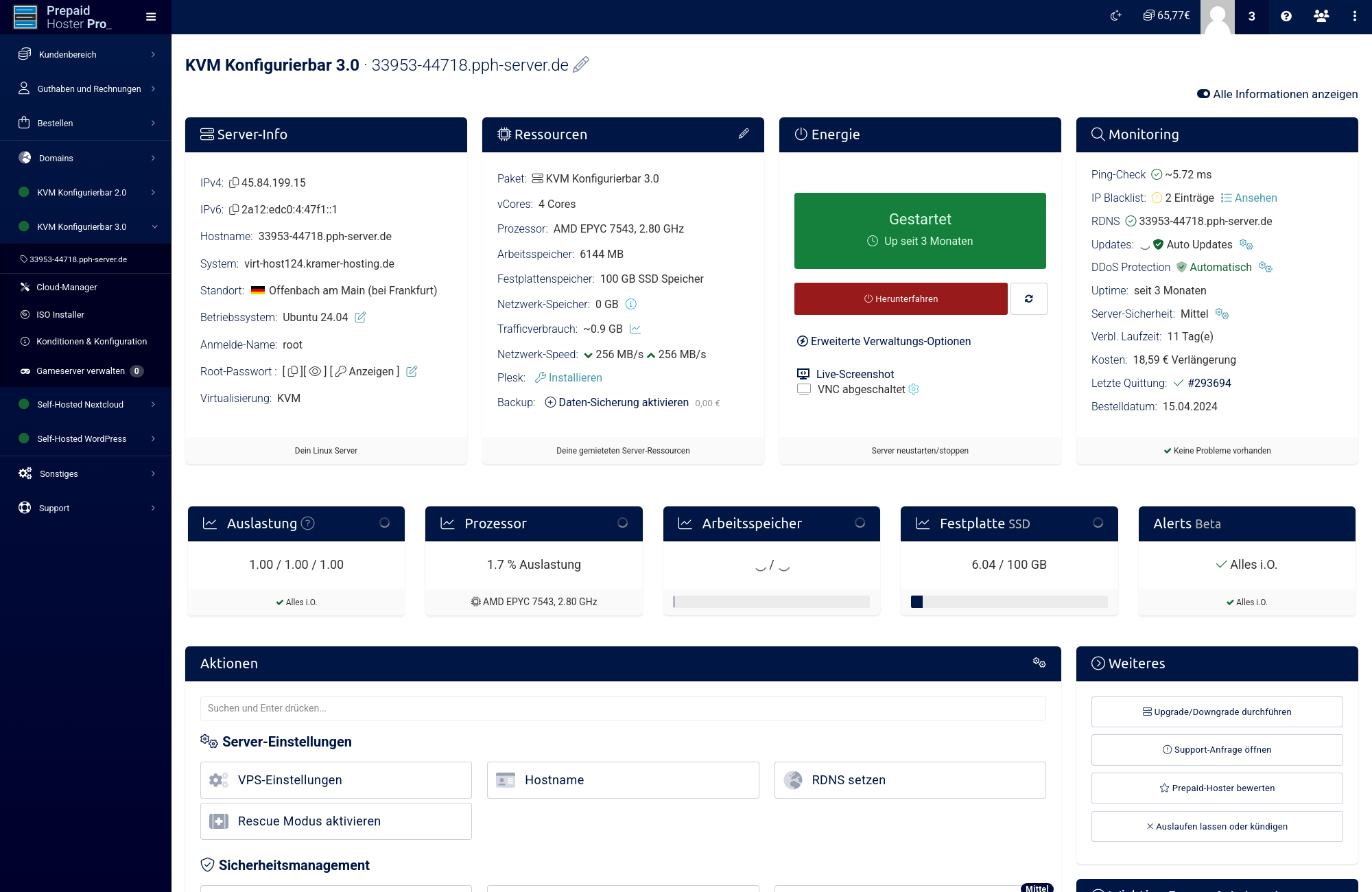
In the web interface, click on the server on which you want to install a database and open the associated cloud manager.

  • Scroll down to the “Actions” box and select “App Installer”.
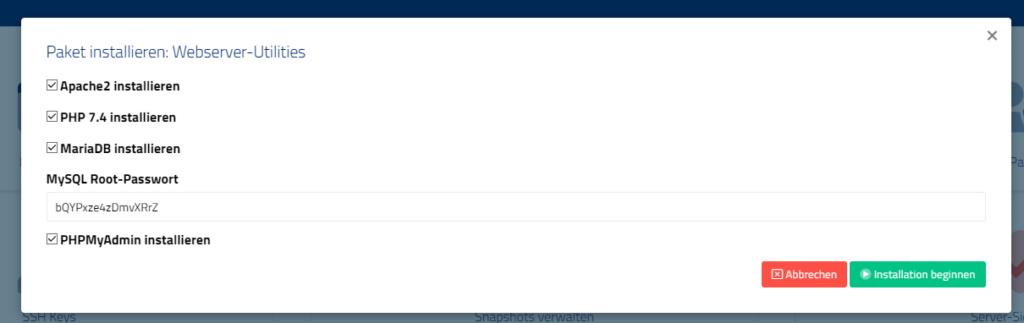
  • Select the “Web Server Utilities” app.
  • Select all packages:
    • Apache2 for phpMyAdmin
    • PHP 7.4 for phpMyAdmin
    • MariaDB (database server)
    • Choose a MySQL root password
    • phpMyAdmin

Click Start installation to start the installation. This process will take 2-3 minutes.

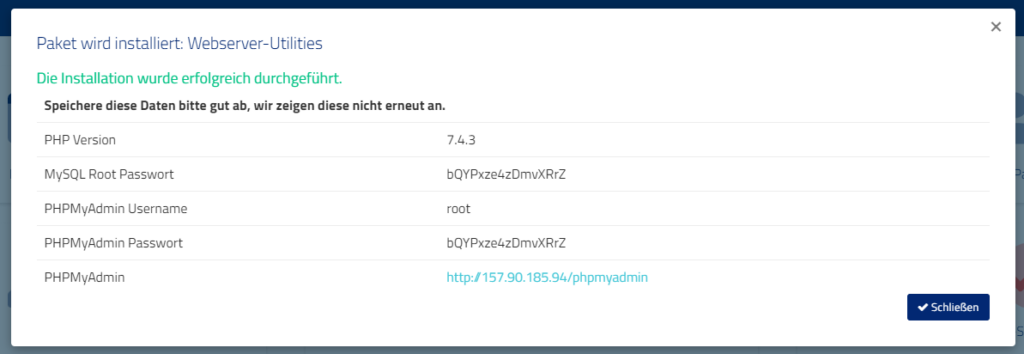
When the process is complete, you will receive login credentials.

We will install the administration interface for your database so that it is accessible at http://IP/phpmyadmin.

The username for the database is “root”.

The access data for the database will be shown to you after the installation. You will also find the MySQL root password on your server in the hidden file /root/.mysql-password.

mysqli_real_connect(): (HY000/1698): Access denied for user ‚localhost’@’localhost‘

If the login to phpMyAdmin does not work, please proceed as follows:

Log in to your server via Putty or similar in SSH and enter the following command:

MYSQL_PWD=$(cat /root/.mysql-password) echo "ALTER USER 'root'@'localhost' IDENTIFIED VIA mysql_native_password USING PASSWORD('$MYSQL_PWD');" | mysql

This will reset the MySQL password again if only socket authentication is available after installation.

If you still have problems or a question, feel free to contact us in support.

My server is not reachable, what to do?

In this article we will explain you why your server can be unreachable and how you can solve it.

There can be several reasons why the server is unreachable.

Your server was locked due to overload

We lock servers sometimes. But never for no reason. For example, we have to shut down your server if it generates too much load. Please contact our support. We will discuss everything together.

Dein Server wurde wegen Abuse-Meldungen gesperrt

We will block your server immediately if we detect any unusual activity on your server. This can happen, for example, if your server has been hacked. Then it sends malicious software to other servers. We have to prevent this. In this case, please contact our support team.

You have changed the SSH port

You may think that your server is not working because you cannot reach the server via SSH. This can happen if you have changed the SSH port, for example. Then your server is no longer reachable on the default port. You can check the current SSH port in the web interface under “SSH data”.

You have activated a firewall

Maybe you activated a firewall and forgot to unlock a port? Or maybe you locked yourself out? This can happen, for example, if you have installed Fail2Ban and have authenticated yourself 3 times incorrectly on the SSH server. No problem! Just contact support and we will take care of it.

The problem is up to us

It may happen that one of our host systems is unavailable. Our status web page can provide you with more details.

We usually respond to outages immediately, solve the problem and bring all host systems back up. However, if we do not find the problem immediately, it may take a little longer.

Reimbursement Policy

Information about our goodwill promise can be found here: https://www.prepaid-hoster.de/info/kulanz-und-gewaehrleistung.html

What does backup rotation mean?

The rotation describes how many backups are stored retroactively when a new backup is created. We also call this slots.

The oldest backup is always deleted if the number of slots would be exceeded at backup creation.

Example: You have rented Backup Premium with 5 slots. You have set that you want to create a backup every day. After 5 days 5 backups have been created. On the 6th day the backup from the first day is deleted so that a maximum of 5 slots are in use.

If you have any questions, please feel free to contact us.

How do I reset the MySQL root password?

To reset the MySQL or MariaDB root password, connect to your server via SSH and first run mysql as the system root user. On Debian and Ubuntu this often logs you in without a password, and one command sets the new one. If not, you start the database briefly without privilege checks, set the password and restart it normally.

Prerequisites

You need an SSH connection to your server as root. How that works is explained in How can I access a Linux server via SSH and transfer data?

Step 1: Check whether you are already logged in

Enter the command mysql. If you don’t get an authentication error, you are already logged in. On Debian and Ubuntu this is often the case, because the system root user may log in via the Unix socket without a password. Set the new password directly and skip steps 2 to 4:

ALTER USER 'root'@'localhost' IDENTIFIED BY 'new-password';

Step 2: Start MySQL without privilege tables

To reset the password, MySQL has to run in a mode without privilege checks. Use it only for the duration of the reset, because in this mode anyone can access all databases.

Stop the MySQL server:

systemctl stop mysql

Start it without privilege checks and without network access, so nobody can connect from outside in the meantime:

mysqld_safe --skip-grant-tables --skip-networking &

The output shows that MySQL is running in this unsafe mode.

Step 3: Reset the password

Open the MySQL console:

mysql

Reload the privilege tables first. Only then does ALTER USER work. Then set the new password for root:

FLUSH PRIVILEGES;
ALTER USER 'root'@'localhost' IDENTIFIED BY 'new-password';
quit;

The old way via UPDATE mysql.user ... password() no longer works from MySQL 8 and MariaDB 10.4 onwards.

Step 4: Restart MySQL normally

Stop the unsafe instance. Root now has a password, so enter the new one when asked:

mysqladmin -uroot -p shutdown

Start the normal MySQL server:

systemctl start mysql

Step 5: Test the new password

mysql -uroot -p

Enter the new password when prompted. Alternatively test the login in phpMyAdmin. For phpMyAdmin a separate database user is the better choice, see How do I install phpMyAdmin on my server?

Common pitfalls

  • “Access denied for user ‘root’@’localhost'” after the reset: With a password set, the plain mysql command without -p no longer logs you in. Use mysql -uroot -p.
  • ALTER USER fails in step 3: FLUSH PRIVILEGES; is missing. Run it first, then repeat the command.
  • You want to reach the database from another machine: That needs extra steps, see Make MySQL accessible from outside.

Further resources