How can I delete my account?

If you want to delete your account, there are a few steps to follow. First, you need to cancel all services such as servers and domains, and they must no longer be active. If you have any remaining credit on your account, it will expire when you delete your account. Please note that before deleting your account, you should contact customer support to start the process.

How does the deletion of my account work?

Once you have contacted customer support, your account and all personal data will be anonymized according to the General Data Protection Regulation (GDPR). This means that your personal data, such as name and address, will be removed from our systems. Please note that we must comply with legal deadlines for the retention of invoices and transaction information, so these cannot be deleted.

What happens to my personal data?

Your personal data will be anonymized and removed from our systems in accordance with the General Data Protection Regulation (GDPR). After anonymizing your data, login will be disabled.

Can I reactivate my account after it has been deleted?

No, it is not possible to restore a deleted account. According to the GDPR, once an account has been deleted, anonymized, or pseudonymized, there is no longer a way to assign the account to a natural person. However, if you wish to use our services again, you can create a new account and order the desired services.

How long does the account deletion process take?

After you have submitted a request to delete your account, a customer support representative will anonymize it immediately. Once the account has been anonymized, login and any form of contact will no longer be possible. Due to technical processes, it may take up to 24 hours for anonymization to be fully completed in all systems. Please note that anonymization is done automatically.
How do I get an API Key?

Get API key for Prepaid-Hoster API – FAQs

API key for the Prepaid-Hoster API:

Currently there is no direct way to get an API key for the Prepaid-Hoster API.

Beta test registration

However, you can sign up for the beta program on our Discord server and get an API key. You can then test the API and provide your feedback. Please note that we only distribute access to active customers.

Advantages of the API

With our API, you can perform a variety of actions that are normally available through the web interface. Here are some examples of what you can do with our API:

  • Manage hosting accounts and domains: with our API you’ll be able to create, delete and update servers, as well as add or remove domains. This will allow you to perform these tasks automatically and save time.
  • Manage orders and invoices: You can manage all orders and invoices through the API and also create new orders. This simplifies the processing of orders and reduces manual tasks.
  • Transaction management: You can manage transactions and initiate payments through the API. This can be useful if you want to set up automated payments or process transaction data in your own system.

By using our API, you have the advantage of automating time-consuming manual tasks, leaving you more time for other tasks. You can also facilitate the integration of different systems and thus increase the efficiency of your project.

Ressourcen

Server Management Sharing

How can I allow another user to access my cloud manager and game server?

In our web interface you have the possibility to give another person access to your cloud manager and the game server administration. We will explain you how to do that.

Receive release token

Share server

Your friend needs to have an account with Prepaid Hosters to be able to manage it in the web interface. Ask him or her to provide you with the release token. This can be found in

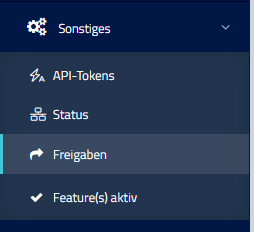
the web interface under “Other” > “Shares”.

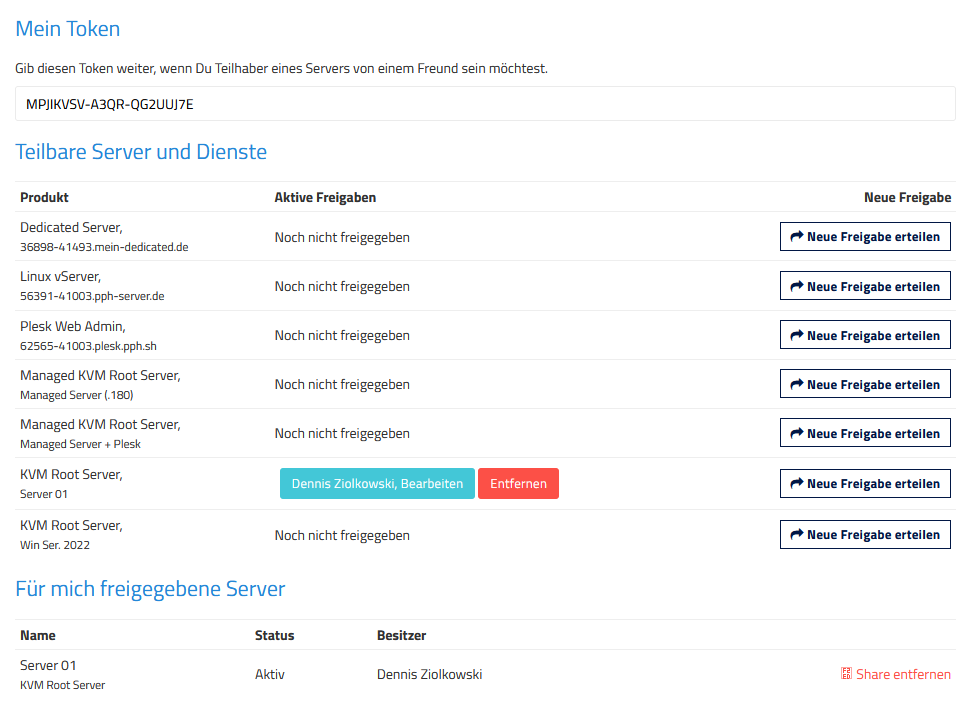
For example, a token looks like this: MPJIKVSV-A3QR-QF2UUJ6E. You need this token.

Use share token

As the server owner, also go to “Other” > “Shares”. Click on “Grant new share” in the row of the server you want to share.

In the form that follows, enter the release token that you received from your buddy.

Now you can choose which pages you want to grant access to. You can withdraw the permission at any time.

Share overview

Constraints

  • Only you can pay for the server.
  • Only you can upgrade/downgrade.
  • Only you can cancel the server.
  • You can only release whole areas, not single features or game servers.

How do I activate Windows Server?

Activate Windows Server and store license – step-by-step guide

Our servers are shipped with a 180 day trial license from Microsoft by default. In order to use the server according to the EULA of Microsoft Windows, you must deposit a Windows license.

To activate Windows Server, it is necessary to have a license key. This must be either Windows Server 2019 Standard or Windows Server 2022 Standard. Depending on which operating system you have installed.

To be able to install the standard license, you have to convert the evaluation version to standard. So you can’t just enter the key in the ProductKey mask. A little command line is needed.

Convert evaluation to standard via CMD

Log in to your Windows server via RDP.

Open the console as administrator. Open the search, type cmd. Right click on the entry and you will get the option to open the console as administrator. Click on it.

Activate Windows with Key

dism /online /set-edition:ServerStandard /productkey:KEY /accepteula

After that, your Windows is activated. If unexpected errors occur, it is best to use an online search to find possible sources of error.

Mailcow Admin Login: Default Password and Password Reset

After installation you log in to Mailcow at https://mail.your-domain.com/admin with the user admin and the password moohoo. Change the password right after your first login. If you forgot your admin password, reset it over SSH with a script that ships with Mailcow:

cd /opt/mailcow-dockerized
./helper-scripts/mailcow-reset-admin.sh

Login fails although the password is right?

In current Mailcow versions the admin login is at /admin. The start page only accepts mailbox logins. If you enter the admin credentials there, you won’t get in.

Reset the admin password

  1. Log in to the server as root via SSH.
  2. Change to the Mailcow directory. The default is /opt/mailcow-dockerized. If you don’t remember where Mailcow lives, docker compose ls shows the path to its configuration.
  3. Run ./helper-scripts/mailcow-reset-admin.sh and confirm the prompt with yes.

The script then shows you a new random password:

Checking MySQL service... OK
Are you sure you want to reset the mailcow administrator account? [y/N] yes

Working, please wait...

Reset credentials:
---
Username: admin
Password: T2Kj9TtM1ZhngAWD
TFA: none

Use these credentials to log in at /admin and set your own password right away. “TFA: none” means that two-factor authentication for the admin has been reset as well. Set it up again if you need it.

What the script doesn’t change

The script only resets the administrator. Mailbox passwords for SOGo, IMAP and SMTP stay as they are. You change those as admin in the Mailcow interface for each mailbox.

My kernel is outdated – What now?

By default, OpenVZ virtual servers use an older kernel (version 3.10) which still receives security updates but may not offer all the features of newer kernels. Please note that in OpenVZ virtual servers, the kernel is shared with all other virtual servers on the host system, so we cannot make changes to the kernel on an individual basis.

Using KVM servers

If you need a newer kernel, you should consider switching to a KVM server. KVM (Kernel-based Virtual Machine) is a virtualization technology that allows you to install your own kernel on your server. This gives you the opportunity to use a newer kernel that may offer better features and compatibility with specific applications. However, please note that switching to a KVM server may incur additional costs, as KVM servers are generally more expensive than OpenVZ servers.

Using an older kernel

Checking the required features

If you do not need specific features provided by a newer kernel, it may not be necessary to update the kernel. Please check the requirements of your applications and services to determine if a newer kernel is really necessary.

If you have any further questions or concerns regarding the kernel version on your virtual server, please feel free to contact our customer support. We are happy to assist you in selecting the right option for your needs.

How do I install the Guest Agent?

Problem solution: Install Guest Agent on KVM server

It can happen that the Guest Agent was not installed correctly after setting up your server. This is responsible for the connection between your server and Vionity.

You can install the Guest Agent by logging into your server via SSH.

wget -qO /tmp/guest-agent.sh https://pph.sh/kvm-install.sh
/bin/bash /tmp/guest-agent.sh

Your server will now install the Guest Agent. After that you should be able to access the server via Vionity.

If you have problems, the server is not accessible via SSH or you do not feel up to the task, you can contact our support. We will take care of it for you as soon as possible.

What is the Guest Agent used for on a KVM server?

On a KVM server, the Guest Agent is used to collect data about the VMs running on the server. This data is then used to provide users with information about the status and performance of the VMs via the KVM server’s web interface.

The data that the Guest Agent collects can include information about CPU utilization, memory usage, network activity, and other important performance parameters. By making this information available through the web interface, KVM server users can monitor VM performance and detect problems early.

How can I reinstall my server?

New installation and operating system change for virtual servers in Cloud Manager

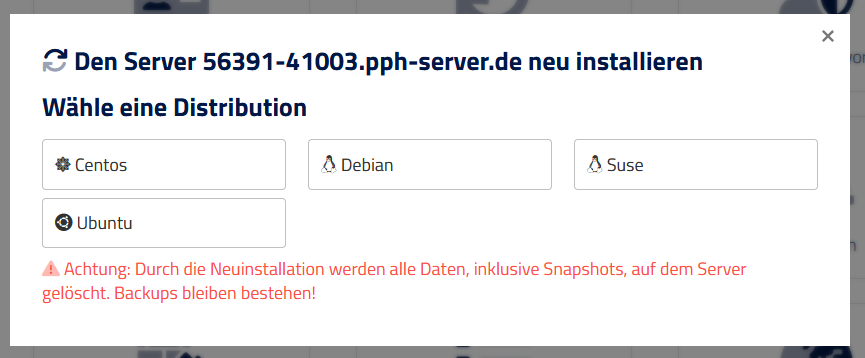
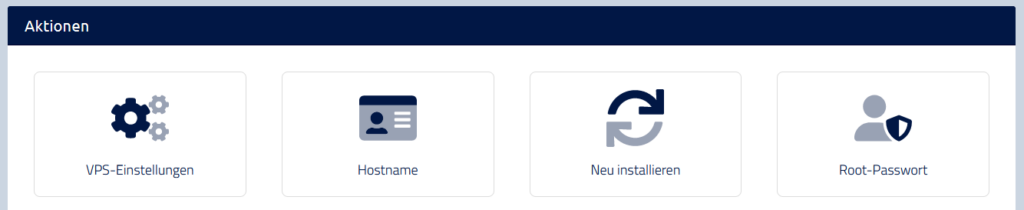
Reinstalling your virtual server via the web interface is very simple. In the Cloud Manager you will find the option “Reinstall” under the actions. There you can reinstall the server or change the operating system. Please note that a new installation will delete all data and the server will be reset. However, it is possible to perform a new installation at any time.

New installation – resetting the server dialog

How does the reinstallation of my virtual server work?

To reinstall your virtual server, navigate to the actions in the Cloud Manager and select “Reinstall”. There you can select the desired operating system or reinstall the server completely. Please note that all data will be deleted during a reinstallation, so you should make a backup beforehand.

Actions in the web interface

Can I change the operating system of my virtual server?

Yes, in Cloud Manager you have the option to change the operatins systems of your virtual server. Simply select the “Reinstall” option and choose the desired operating system. However, please note that when you change the operating system, all data on the server will be deleted and you should perform a data backup.

Is it possible to reinstall my virtual server at any time?

Yes, reinstalling your virtual server is possible at any time. Simply navigate to the Cloud Manager and select the “Reinstall” option to reset the server or change the operating system. However, please note that a reinstallation will delete all data and you should perform a backup if you have important data on the server.

My IP address is on a block list

IP address on block list – What to do?

If your IP address is on a block list, it means that it has been identified as a source of spam or other unwanted content. This can cause emails sent from your server to be blocked by certain email providers, such as Gmail or Yahoo.

The error message may look something like this:

SMTP error 550: 5.7.1 
Recipient not authorized, your IP has been found on a block list

Especially annoying: Outlook

Learn why Microsoft has blocked some IP address ranges and how we are working to improve email delivery quality.

Why can’t I send emails to Gmail or other email providers if my IP address is on a block list?

Email providers use block lists to filter unwanted emails and spam. If your IP address is on a block list, this can cause the emails sent from your server to be blocked by these providers. This can lead to important emails not being delivered and your communication being affected.

What can I do if my IP address is on a block list?

If your IP address is on a block list, you should contact our customer support. We can provide you with “clean” IP addresses that are not on block lists. This will ensure that your emails are delivered and your communication goes smoothly. Note, however, that in this case we need to know what kind of mail traffic you are sending. For private applications, we are guaranteed to always find a solution. For larger projects, such as transactional mails, we recommend other solutions.

Use DKIM & SPF

The use of DKIM and SPF can improve email delivery by verifying the authenticity of emails and ensuring that they come from a trusted sender.

DKIM (DomainKeys Identified Mail) is a method of verifying the authenticity of emails using digital signatures. It involves embedding a digital signature in the header of the email, which is verified by the receiving domain. If the signature is valid, the e-mail is classified as authentic and delivery is facilitated.

SPF (Sender Policy Framework), on the other hand, is a system that prevents emails from being sent from unauthorized servers. It involves creating an entry in the domain’s DNS record that specifies which servers are authorized to send email on behalf of the domain. When the receiving domain verifies that the server sending the email is listed in the SPF record of the sender domain, the email is delivered.

Using DKIM and SPF can improve email delivery because these systems verify the authenticity of the email and ensure that it comes from a trusted sender. This reduces the risk of emails being blocked by spam filters or moved to the spam folder, resulting in a higher delivery rate and improved communication.

Graphics and DirectX on Windows vServers: What Works and What Doesn’t?

No. Our vServers do not have a graphics card. DirectX 11, GPU passthrough and vGPU are not available, and we do not offer a vServer plan with graphics acceleration. Games, 3D rendering, CAD or GPU computing will therefore not run on a Windows vServer, or only with severe limitations.

What does DxDiag show on my vServer?

The display device is listed as “Virtuozzo WDDM QXL controller”. This is a pure display driver (display-only). It makes sure you get a picture via VNC and RDP, nothing more. There is no 3D acceleration, which is why DxDiag reports Direct3D as not available. This is not a fault of your server, and it cannot be changed by installing other drivers.

Why is there no GPU on vServers?

With GPU passthrough, a physical graphics card is permanently assigned to exactly one VM. On a host that runs many customer VMs, this makes sense neither technically nor economically.

Shared virtual GPUs (vGPU) add another interface between the VM and the host that can be attacked. This is exactly why Microsoft disabled RemoteFX vGPU in 2020 due to security vulnerabilities and later removed it completely. As with nested virtualization, our rule is: every additional layer between your VM and the host is a risk for all other customers on that host.

Is there a workaround?

Windows can partly calculate simple Direct3D calls in software on the CPU. Some applications will start this way, but they run very slowly. For games, video editing or 3D work, this is not a solution.

What about game servers?

They run without any problems. A game server does not need a graphics card, it only calculates the game world and runs without a display. You play on your own PC. For games with a high load per core, the Ryzen VPS is the better choice (Linux only).

Graphics unit on a dedicated server

On a dedicated server, the entire hardware is yours, including any graphics unit built into the processor. Whether there is one depends on the installed CPU. Many server CPUs have no integrated graphics.

You can check this yourself before ordering: look up the CPU model of the configuration you want on the manufacturer’s website (Intel or AMD). It states whether integrated graphics are available and which DirectX version they support. Also check whether drivers for Windows Server exist for these graphics, as many manufacturers only provide them for desktop Windows. Our dedicated servers do not come with a dedicated graphics card.