You can create a redirect directly in the DNS settings of your domain, without any web hosting. It only works via HTTP though, there is no SSL certificate. If someone opens your domain with https://, the browser shows a warning or “Not secure”. For a clean HTTPS redirect, for example for a QR code, a business card or a company domain, you need a web hosting package or your own server.
Which option fits you?
| Option | HTTPS without warning | Cost | Good for |
|---|---|---|---|
| Redirect in the DNS settings | No | free | short links on subdomains, internal use, tests |
| Redirect in web hosting (Plesk) | Yes, with a free Let’s Encrypt certificate | our smallest web hosting package is enough | main domain, QR codes, companies, anything public |
| Redirect on your vServer | Yes, for example with nginx and Let’s Encrypt | your server | if you already run a server |
Rule of thumb: if the public clicks or scans your link, use the HTTPS option. Many browsers and camera apps open addresses with https:// right away, and a plain DNS redirect then ends in a warning.
Create a redirect without web hosting
- In Vionity, click “Domains” in the left menu and select your domain.
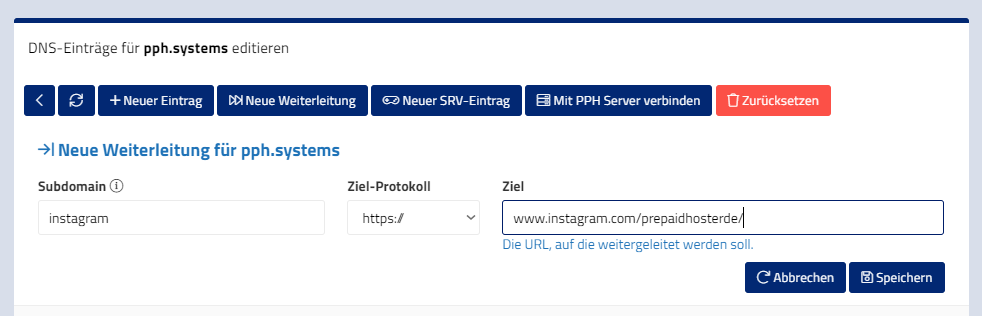
- Open “DNS-Einstellungen” (DNS settings) and click “Neue Weiterleitung” (new redirect).
- Fill in the form and save. The redirect is set up in the background.
| Name | youtube | The subdomain that should redirect. Leave empty for the domain itself. |
| Ziel (destination) | https://www.youtube.com/channel/XYZ | Always enter the full URL with https://. |
| Protokoll (protocol) | Filled in automatically if the URL includes the protocol. |
Domain, www and all subdomains
- For the domain without www, leave the name empty.
- For www.your-domain.com, add a second entry named
www. - Use
*as the name to redirect all subdomains. This does not cover the domain itself, so you also need the entry without a name.
New redirects usually work after a few minutes. Because DNS answers are cached, it can take up to 24 hours until they arrive everywhere.
HTTPS redirect with web hosting
With a web hosting package your domain gets its own SSL certificate, and the redirect runs via HTTPS without a warning. For a plain redirect, our smallest package is enough.
- Add the domain in Plesk and connect it to your web space with an A record.
- Set the hosting type of the domain to forwarding, enter the destination URL and choose the permanent redirect (301).
- Issue a free Let’s Encrypt certificate for the domain and www.
If your domain already points to your web hosting, create the redirect only in Plesk and not additionally in the DNS settings. Otherwise two entries for the same name point in different directions.
HTTPS redirect on your vServer
If you already run a vServer, set up the redirect there. Point the domain to your server with an A record, get a Let’s Encrypt certificate for nginx and redirect in the server block:
server {
    listen 443 ssl;
    server_name your-domain.com www.your-domain.com;
    # certbot sets ssl_certificate and ssl_certificate_key
    return 301 https://destination.com$request_uri;
}
Common pitfalls
- Browser shows “Not secure” or a certificate warning: You use the redirect from the DNS settings and the domain was opened with https://. This cannot be fixed there, use the web hosting option.
- http:// works, https:// does not: Same cause. A DNS redirect has no SSL.
- Redirect via CNAME: A CNAME only points one name to another name in DNS. The browser does not end up on a different URL. For a real redirect, use one of the options above.
- Only www or only the domain redirects: Both names need their own entry, see above.
- Redirect does not work yet: Give DNS up to 24 hours before opening a ticket.